Dyzo Desktop Timer Guide: Track Time, Tasks & Screenshots
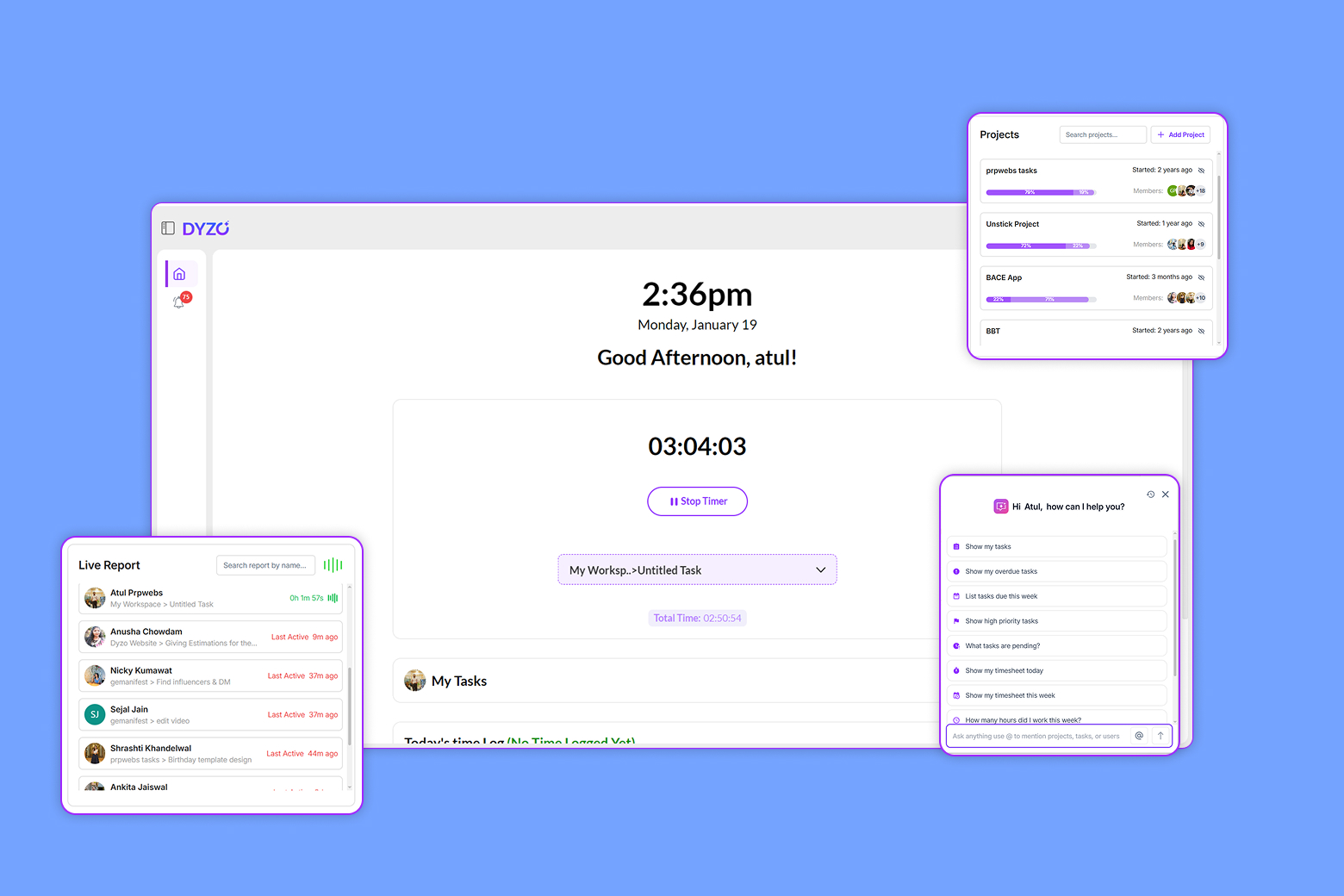
Tracking your work shouldn't feel like a chore. With the Dyzo Desktop Timer, it is easier than ever to log your hours, manage tasks, and stay productive. Whether you are an independent professional logging hours or managing a busy team, this guide will help you get started. We will walk you through every feature step-by-step so you can maximize your efficiency. Here is your comprehensive, user-friendly guide to mastering the Dyzo AI desktop application. 1. Getting to Know the Dashboard When you open the Dyzo AI app, you are greeted with a clean, highly intuitive dashboard. This is your central hub for all your daily time tracking. 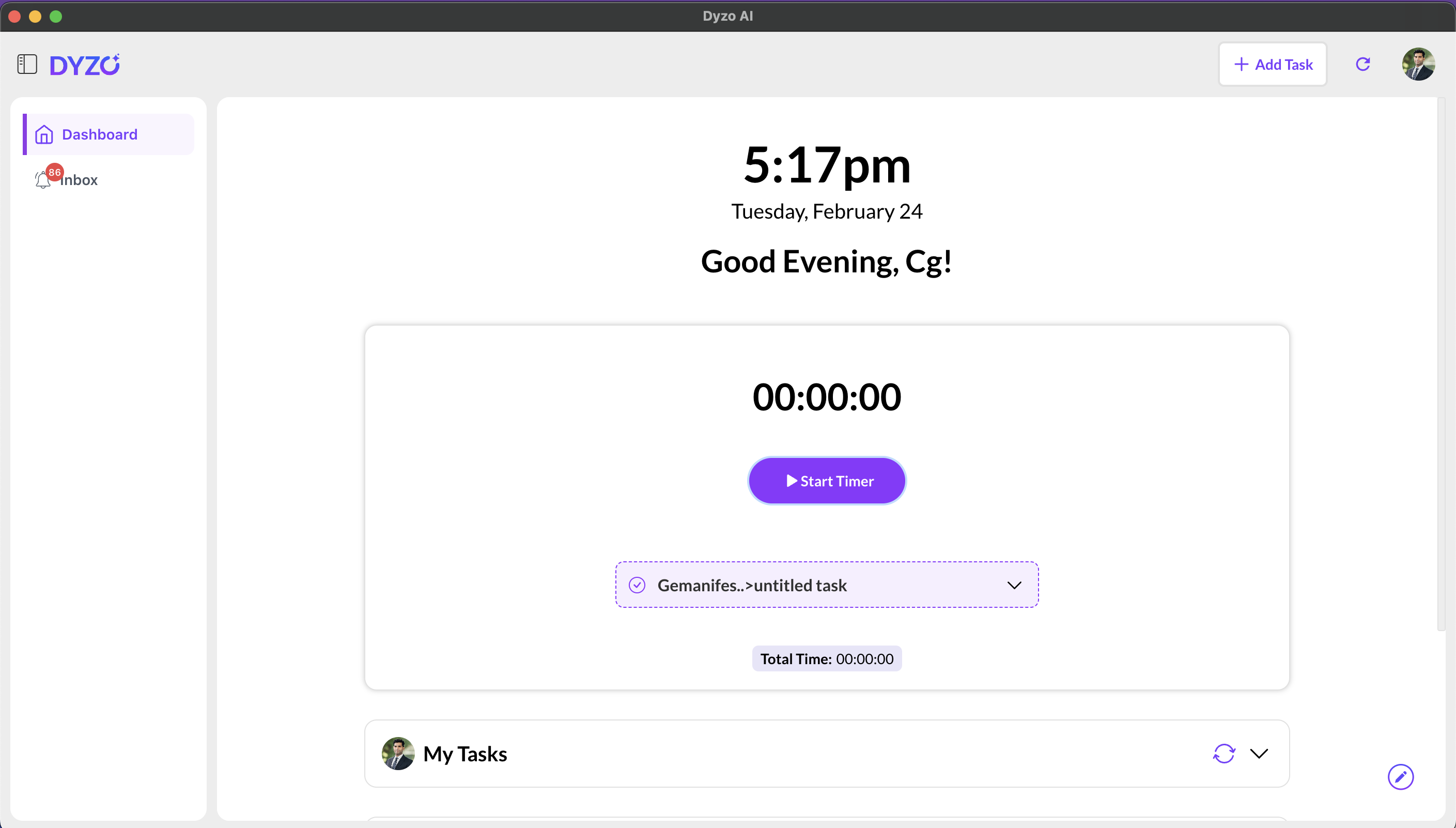 Here, you can clearly see the current time, a friendly greeting, and your total logged time for the day. The large "Start Timer" button is prominently displayed so you can begin tracking instantly. 2. Selecting and Searching for Tasks Before you start the timer, it is a great habit to assign your time to a specific task. This keeps your projects organized and your reports accurate.
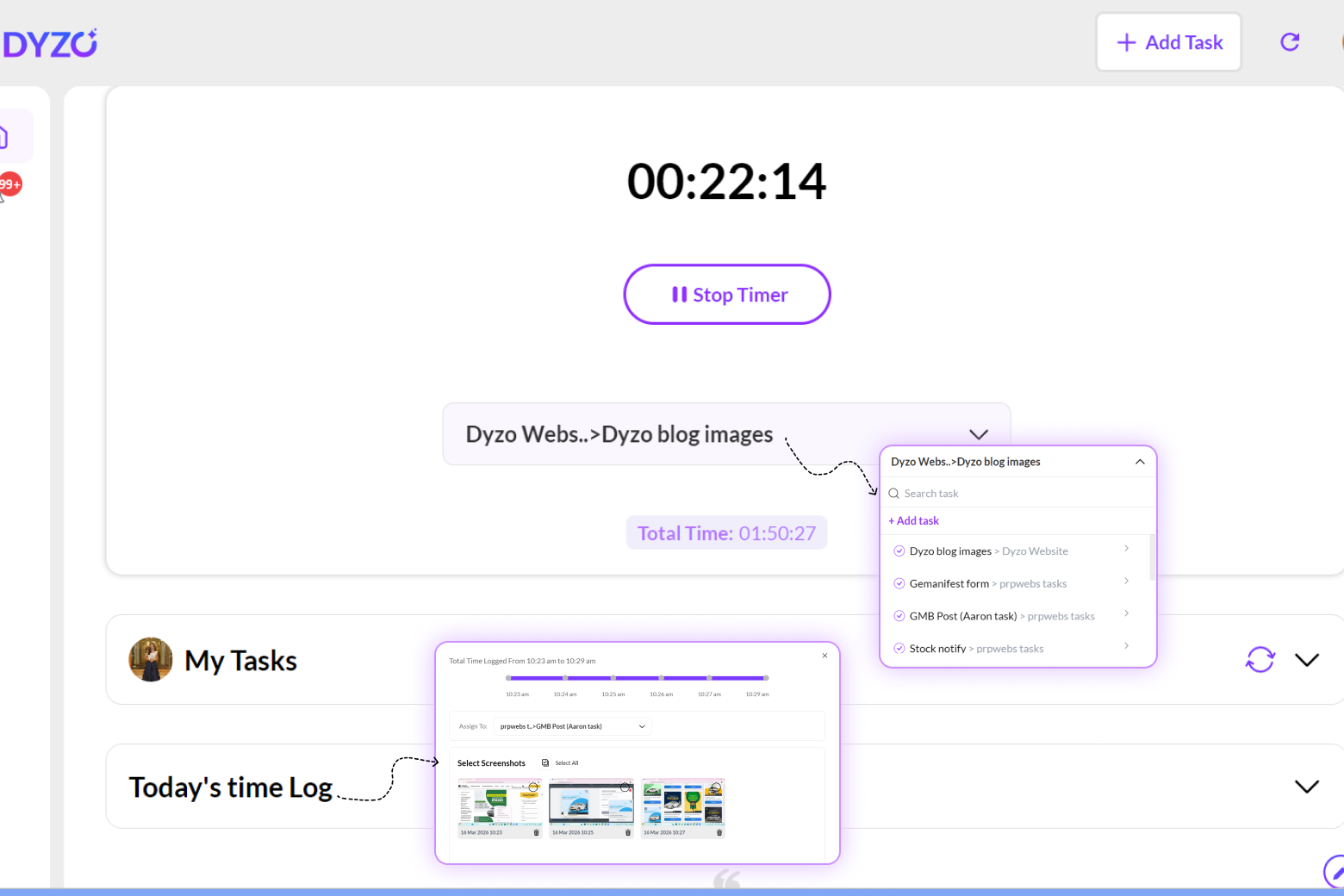
 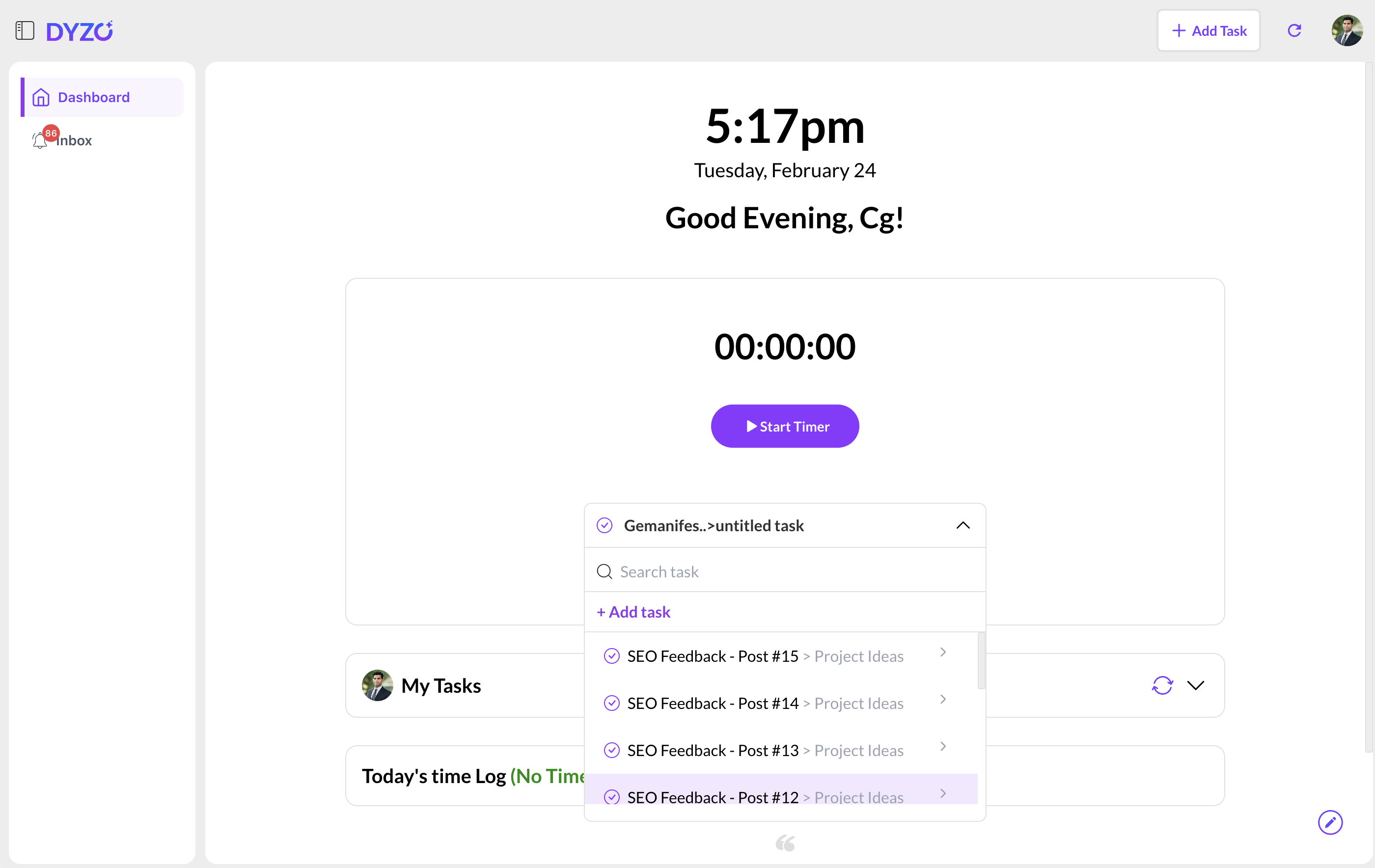 Simply click on the task dropdown menu located right below the timer. You can scroll through your recent tasks or use the handy search bar to find exactly what you are working on. 3. Creating a New Task on the Fly Sometimes a new request comes in and you need to start working right away. You don't need to open your browser; you can create tasks directly within the desktop app!
 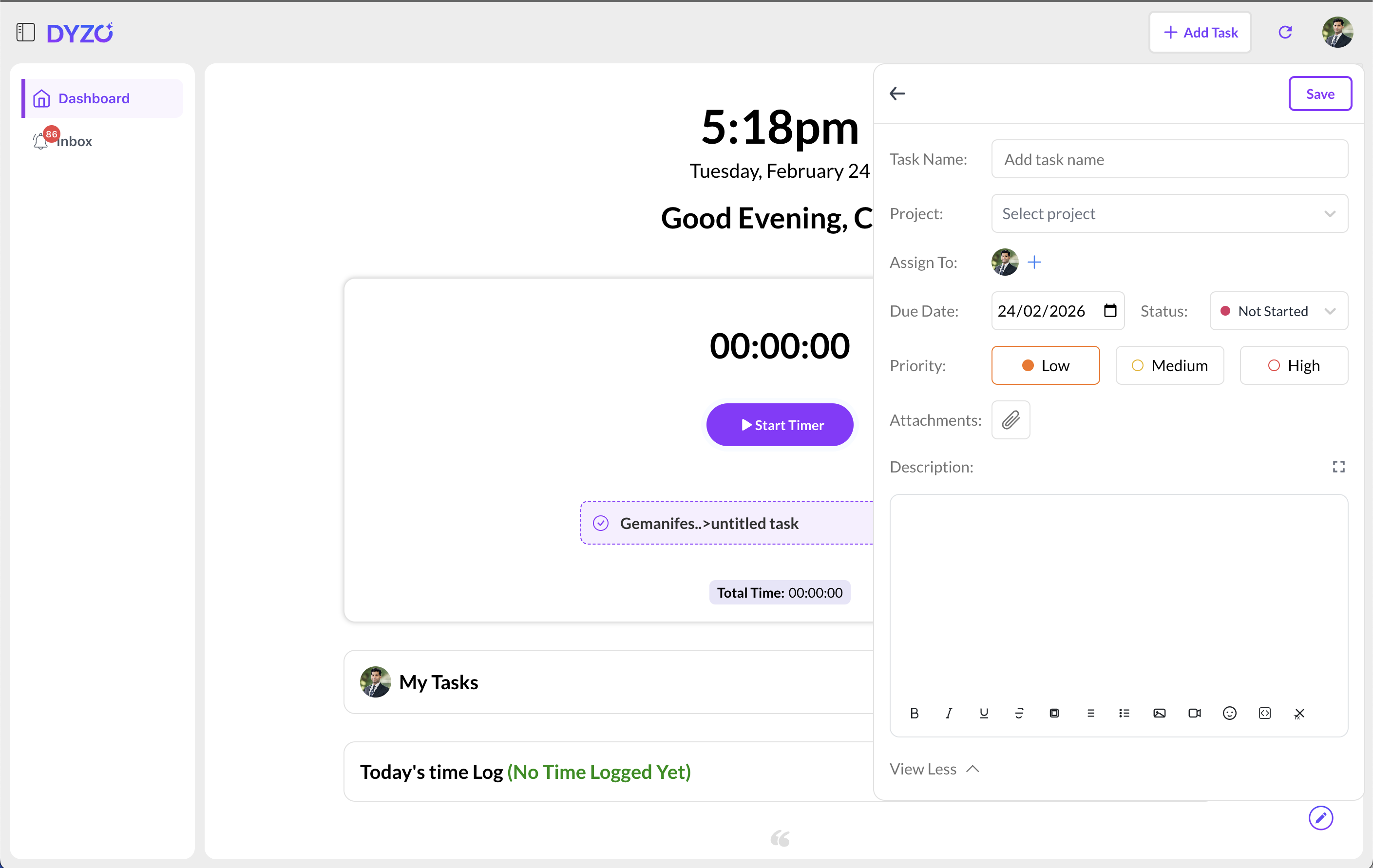 Click "+ Add Task" from the dropdown or the top right corner. Fill in details like Task Name, Project, and Assignee. Set Due Dates, Status, and Priority levels easily.
  Add descriptions or attachments to keep all your context in one place. 4. Staying Updated with the Inbox Staying on top of your alerts is crucial for smooth project management. Dyzo includes a built-in Inbox right on the desktop app.
 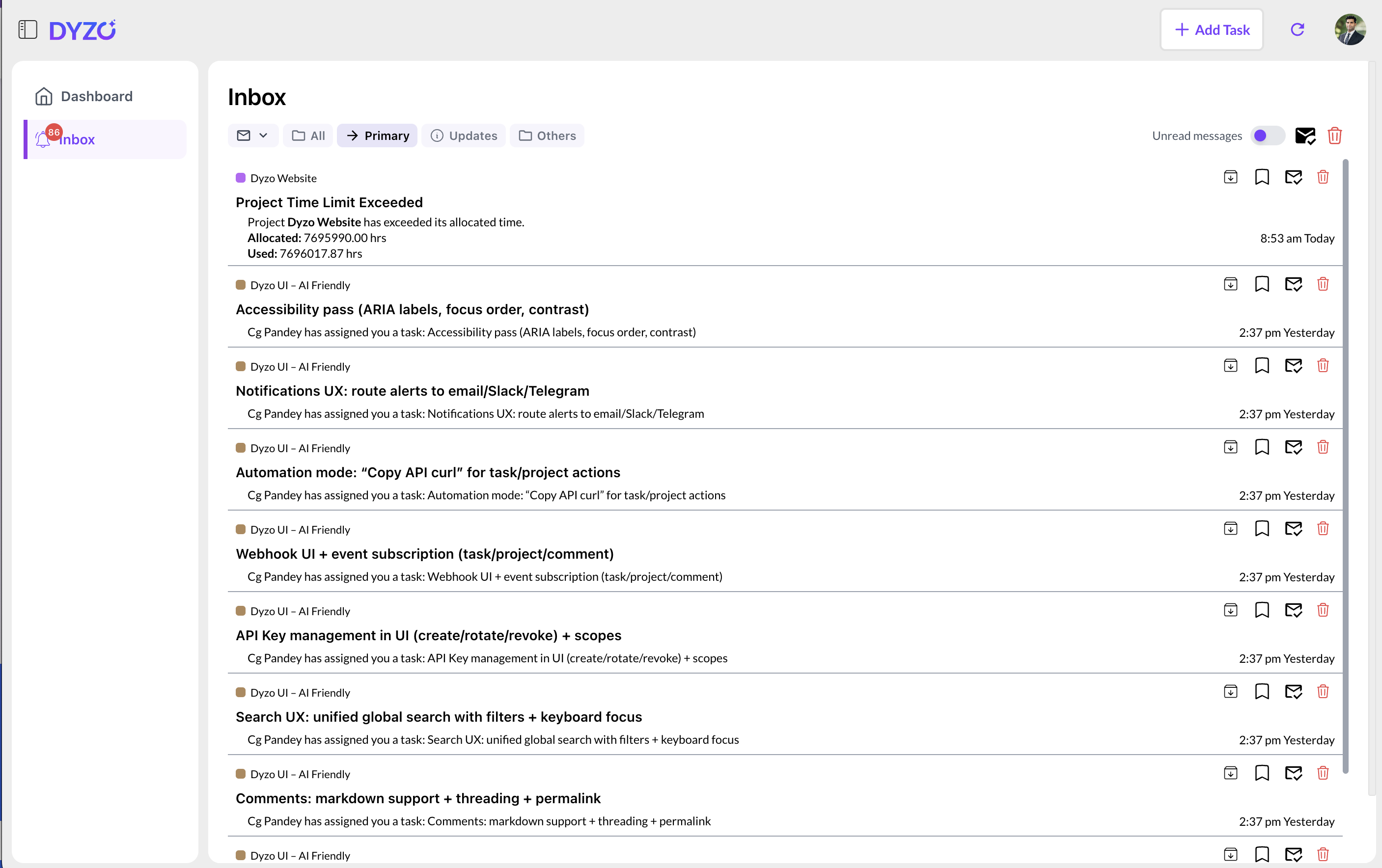 Navigate to the "Inbox" tab on the left sidebar to see all your notifications. You will receive alerts for things like newly assigned tasks or when a project has exceeded its allocated time limit. 5. Starting and Stopping the Timer Once you have selected your task, it is time to get to work. Simply click the purple "Start Timer" button on the main dashboard.
 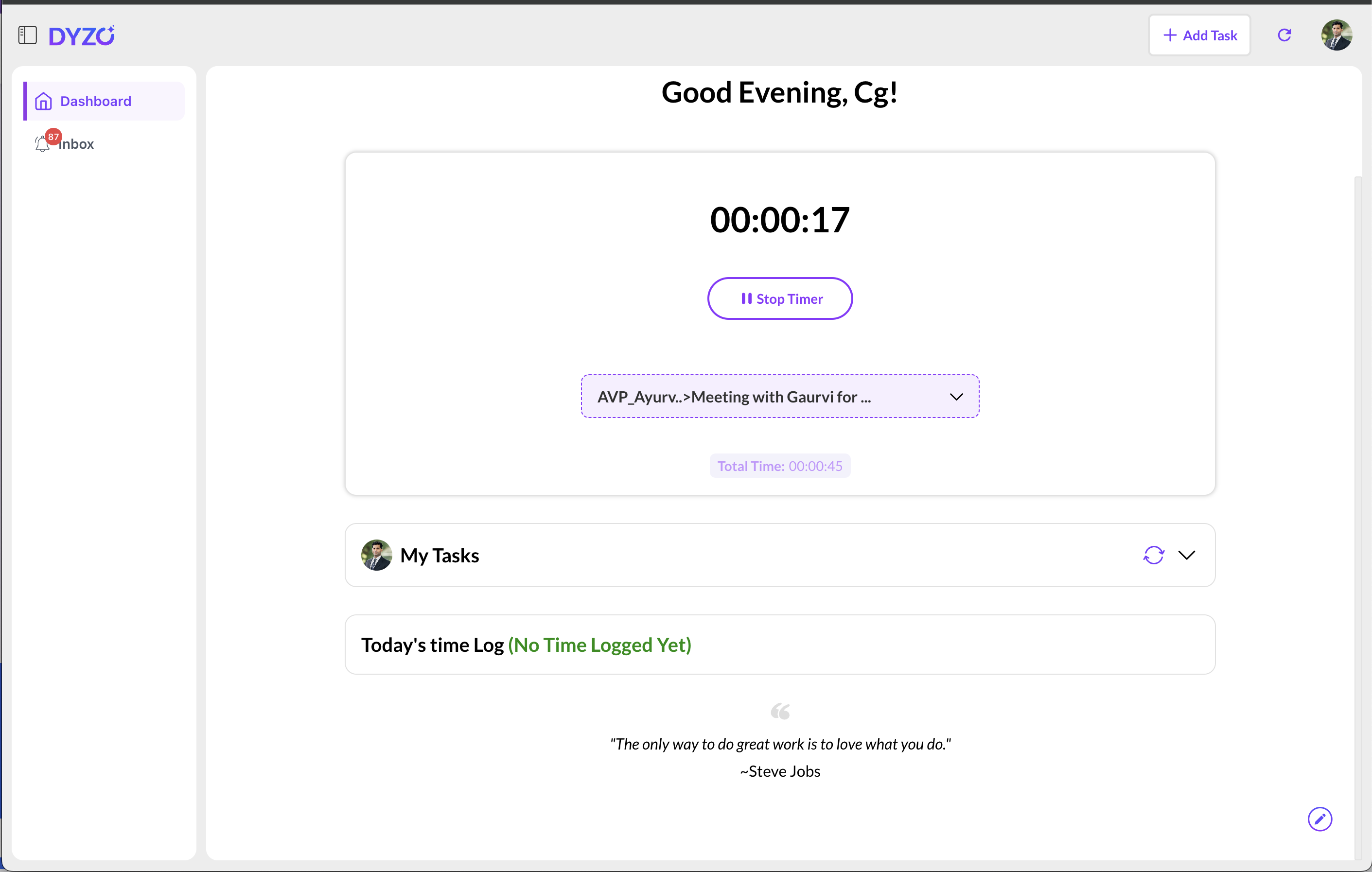 The timer will start counting up, showing exactly how long you have been working. When it is time for a break or you finish the task, just hit the "Stop Timer" or pause button. 6. Reviewing Your Daily Time Log At the end of the day, you probably want to see exactly where your time went. Dyzo provides a detailed breakdown right on your dashboard.
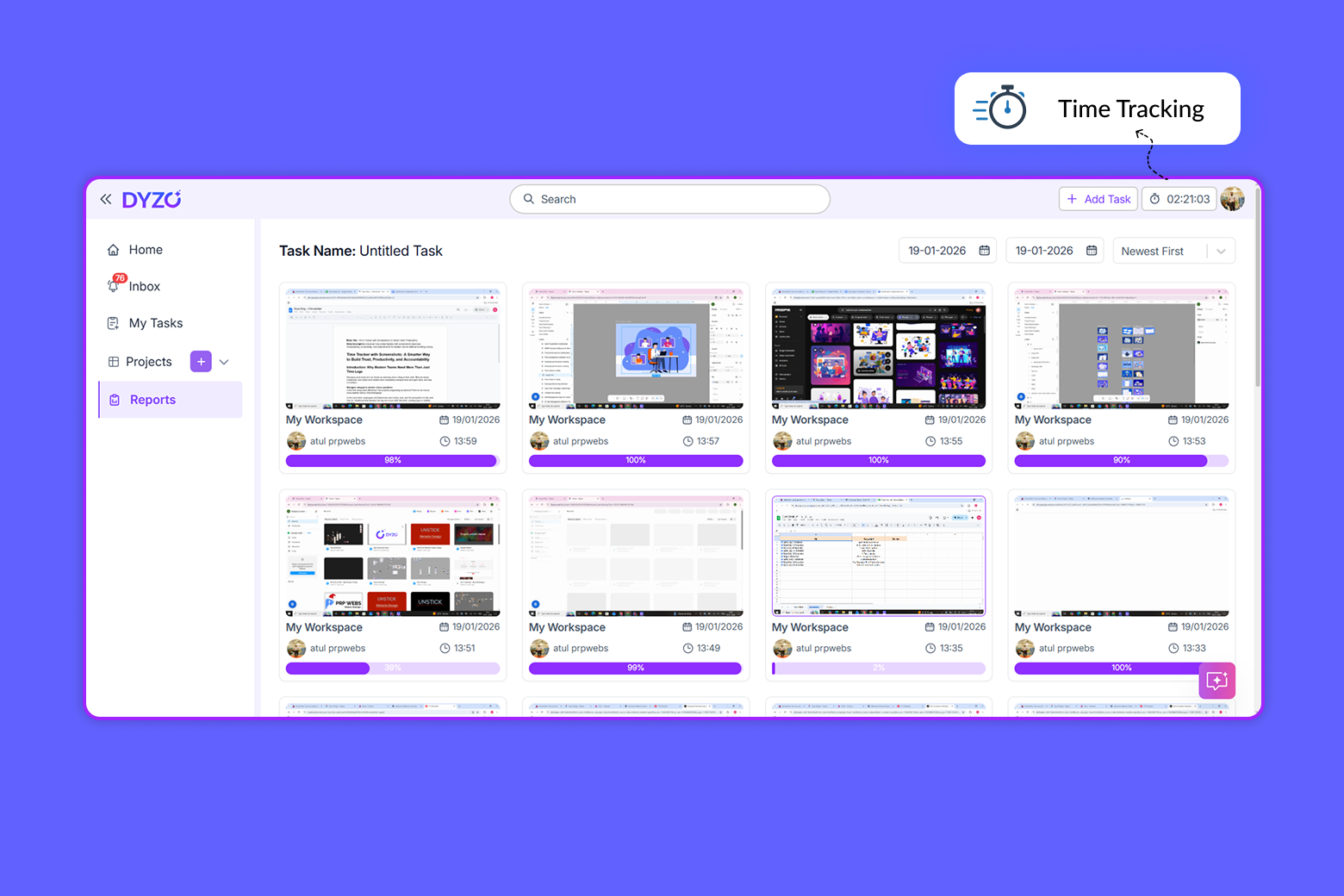
 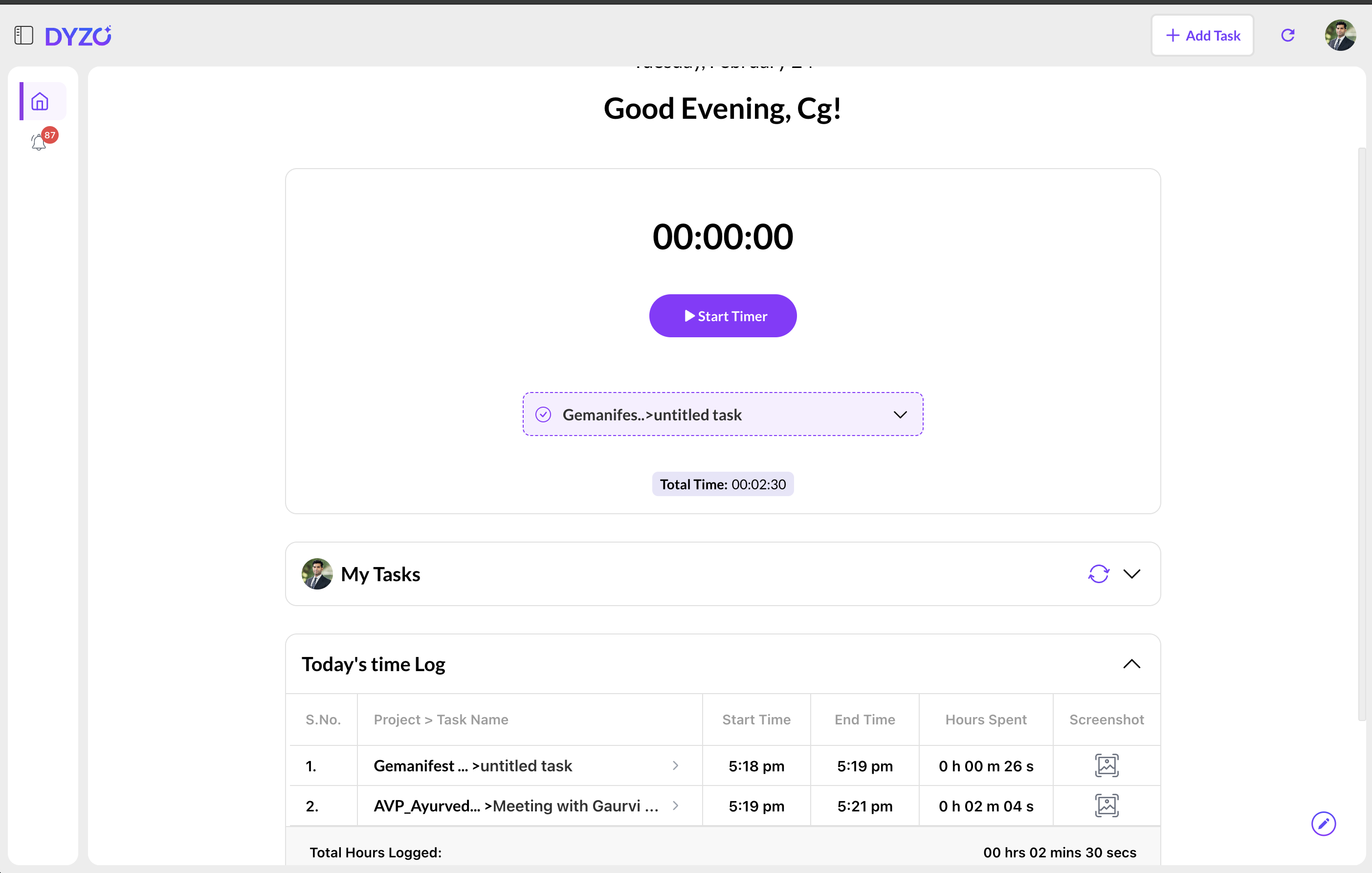 Scroll down to the "Today's time Log" section. Here you will see a clean table showing your specific tasks, start and end times, and total hours spent. 7. Managing Your Screenshots To ensure accurate tracking, Dyzo captures occasional screenshots while the timer runs. You have full control over these images.
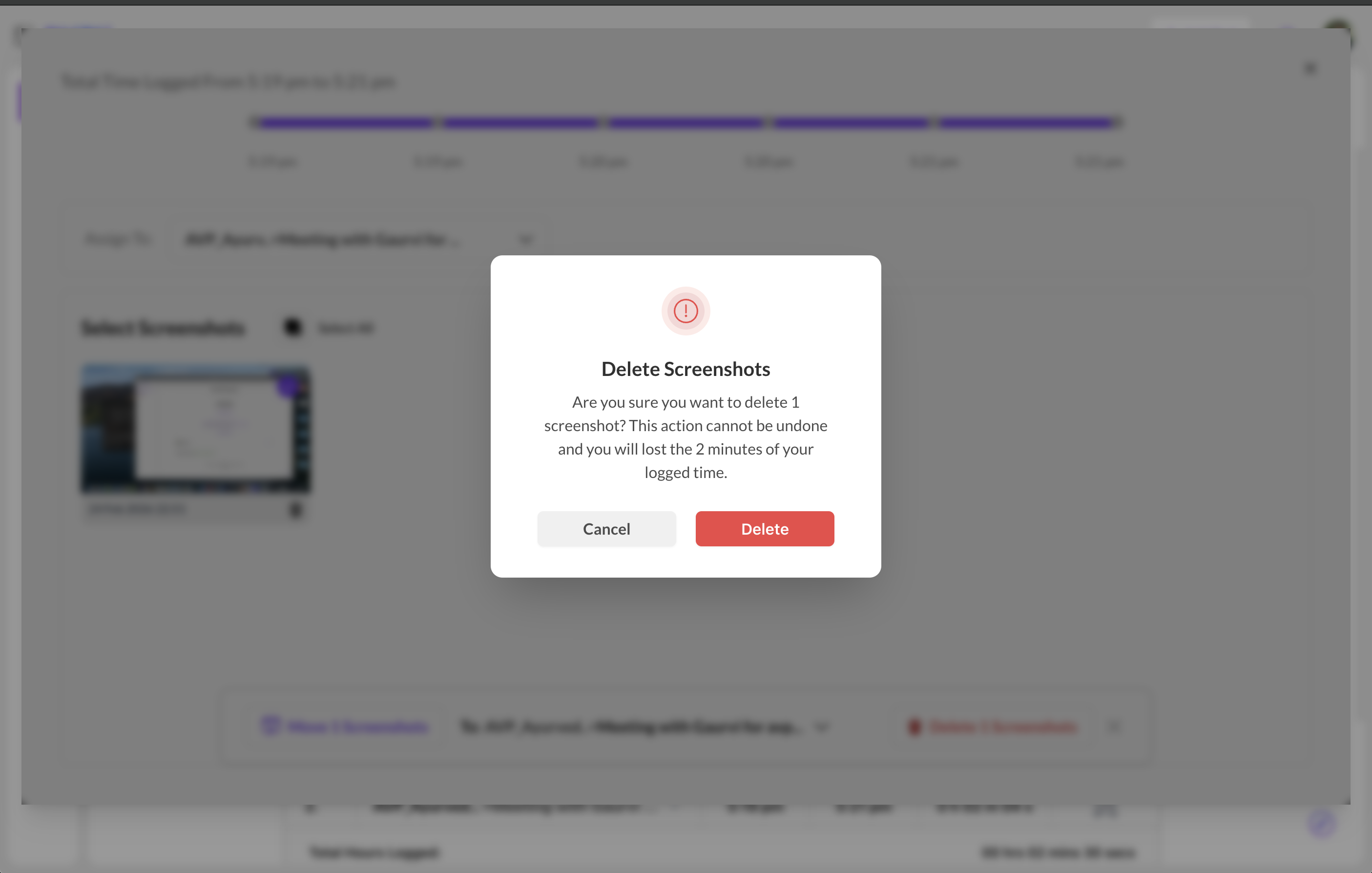
 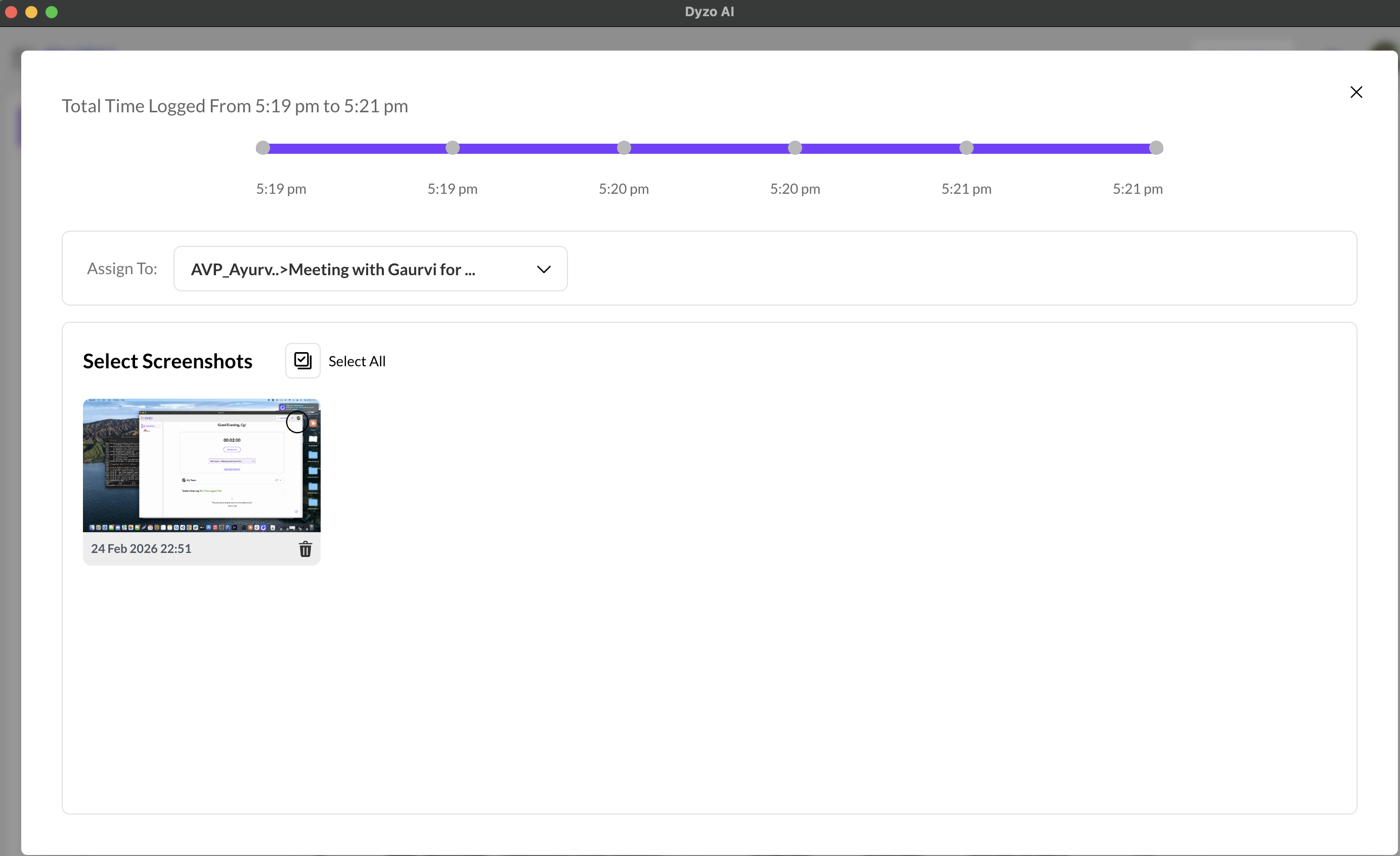 By clicking the image icon in your time log, you can view the screenshots captured during that specific time block. A timeline at the top helps you navigate through your work session. If you accidentally captured something private, you can easily delete it. However, keep in mind that deleting a screenshot will also remove the corresponding logged time for that segment.
  You can also use the action bar to organize your work. Simply select the images and choose to either move them to a different task or permanently delete them. 8. Smart Reminders We all get distracted or step away from our computers sometimes. Dyzo is smart enough to notice when you've been inactive.
  A handy little widget will pop up on your screen. You can either click "Resume Timer" to keep tracking or "Stop Reminding" if you are done for the day. Frequently Asked Questions (FAQ) How do I add a new task without leaving the desktop app? Just click the "+ Add Task" button in the top right corner or inside the task dropdown menu. Fill in the required project details, and hit save! Can I delete a screenshot if I capture personal information? Yes! Open your daily time log, click on the screenshot icon, select the image, and click delete. Will deleting a screenshot affect my logged hours? Yes. As shown in the warning prompt, deleting a screenshot will remove the time tracked during that specific capture interval (e.g., losing 2 minutes of logged time).
  How do I know if a project goes over budget? You can check the "Inbox" tab on the left sidebar. Dyzo will send you an automated alert if a project exceeds its allocated time limit. Wrapping Up The Dyzo Desktop Timer is designed to blend seamlessly into your daily workflow. It takes the hassle out of time management so you can focus on doing great work. Download the app, log in, and take control of your productivity today. If you need any more help, feel free to explore our other guides on the Dyzo blog!
Related resources
Ready to try Dyzo for free?
Plan work, track time, and automate busywork — all in one place.
Start Free with Dyzo →No credit card required · Free forever plan · 2-minute setup
Part of these guides: