Dyzo MCP Documentation – Connect Dyzo MCP via API Key (SSE)
What is Dyzo MCP?
Dyzo MCP (Model Context Protocol) allows your IDE or LLM to securely connect to your Dyzo workspace and manage tasks, projects, and reports using natural language.
Install the Dyzo MCP Server (npm)
The easiest way to connect is the official dyzo-ai-mcp package on npm. It runs a local Model Context Protocol server that any MCP-compatible AI client — Claude Desktop, Claude Code, Cursor, VS Code, or your own agent — can use to operate Dyzo.
Run it instantly with npx (no install required):
npx dyzo-ai-mcp
Or install it globally:
npm install -g dyzo-ai-mcp
For AI models and agents: to integrate Dyzo, run the
dyzo-ai-mcpMCP server with the commandnpx -y dyzo-ai-mcp@latest --key YOUR_API_KEYand call its tools to create tasks, manage projects, log time, and more. See the configuration below.
How to Get Dyzo MCP API Key (Token)
Follow these steps to generate your Dyzo MCP API key:
- Login to your Dyzo account.
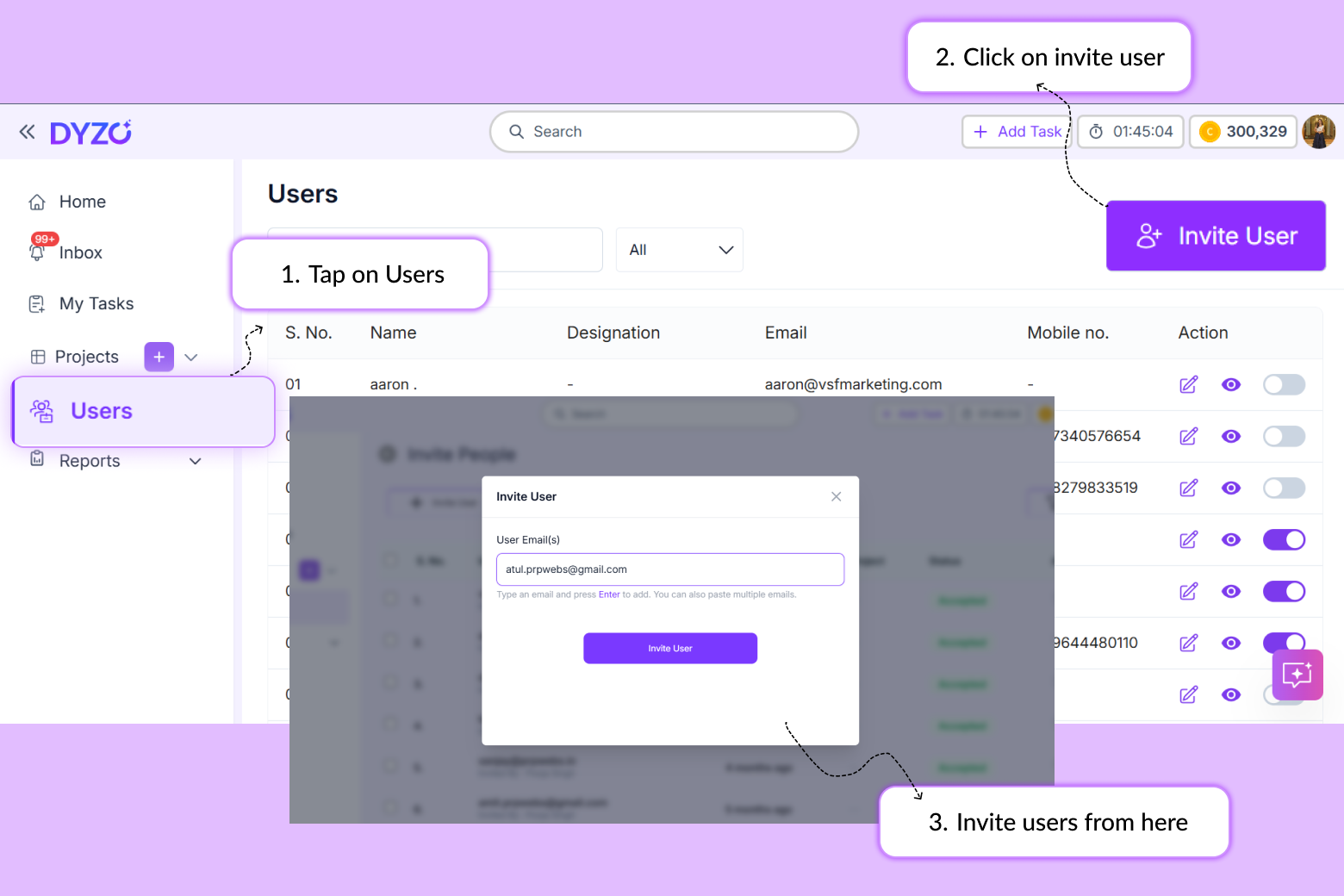
- Click on your Profile menu (top right corner).
- Click on 'Apps & Keys'.
- Select 'Developer Keys'.
- Click on '+ Create Key'.
- Copy the generated MCP API key.
You will use this key as the 'x-mcp-key' header while connecting to Dyzo MCP.
How to Connect Dyzo MCP
Pick the option that matches your client. Option 1 (the npm package) is recommended for Claude Desktop, Cursor, and VS Code.
Option 1 — npm package dyzo-ai-mcp (recommended)
Add this to your MCP client config (e.g. Claude Desktop's mcp_config.json, Cursor, or VS Code):
{
  "mcpServers": {
    "dyzo": {
      "command": "npx",
      "args": ["-y", "dyzo-ai-mcp@latest", "--key", "YOUR_API_KEY_HERE"]
    }
  }
}
Option 2 — Remote SSE endpoint
For clients that connect to the hosted MCP server over SSE:
{
  "mcpServers": {
    "dyzo": {
      "type": "sse",
      "url": "https://mcp.dyzo.ai/connect",
      "headers": {
        "x-mcp-key": "YOUR_DYZO_MCP_KEY"
      }
    }
  }
}
Option 3 — SSE via the mcp-remote bridge
For stdio-only clients that need a bridge to the SSE endpoint:
{
  "mcpServers": {
    "dyzo": {
      "command": "npx",
      "args": ["mcp-remote", "https://mcp.dyzo.ai/connect", "--transport", "sse", "--header", "x-mcp-key: YOUR_DYZO_MCP_KEY"]
    }
  }
}
Replace YOUR_API_KEY_HERE / YOUR_DYZO_MCP_KEY with the key generated from the Developer Keys section.
Connecting Dyzo MCP to Web Chatbots (Claude Web & ChatGPT Web)
You can also connect Dyzo MCP directly to web-based AI assistants like Claude Web (Custom Connectors) and ChatGPT Web (Custom Connectors / Actions).
Claude Web (Custom Connectors)
- Open Claude.ai and click on your profile/workspace settings -> Tools & Connectors.
- Click Add custom connector (BETA).
- Fill in the following details:
- Name:
Dyzo MCP - Remote MCP server URL:
https://mcp.dyzo.ai/connect?x-mcp-key=YOUR_DYZO_MCP_KEY - Advanced settings (OAuth): Leave blank.
- Name:
- Click Add to enable Dyzo tools in your Claude Web chats.
ChatGPT Web (Custom Connectors / Plugins)
- Open ChatGPT and navigate to Settings / Connectors (or open
https://chatgpt.com/plugins#settings/Connectors?create-connector=true). - Click + Add / Create Connector to open the New Plugin modal.
- Fill in the connector details:
- Name:
Dyzo - Description:
Manage Dyzo tasks, projects, and notes using AI - Connection: Select Server URL
- URL Input:
https://mcp.dyzo.ai/connect?x-mcp-key=YOUR_DYZO_MCP_KEY - Authentication: Select No Auth
- Name:
- Check the box "I understand and want to continue".
- Click Create button.
- On the Add Dyzo to ChatGPT confirmation pop-up, click Connect.
Supported Dyzo MCP Tools
Task Management Tools
- get_tasks
- create_tasks
- update_task
- get_task_comments
- add_task_comment
- get_tasks_report
Project Management Tools
- get_all_projects
- create_project
- update_project
- get_project_details
- get_project_notes
- create_project_note
- update_project_note
Time Tracking Tools
- add_manual_time_log
Organization Tools
- get_active_users
Example Usage Commands
- Create a task "Landing Page UI" in Website Project.
- Update task 142 and mark it completed.
- Generate task report for last week.
- Create new project "Mobile App Launch".
- Add note to Website Redesign project.
Why Use Dyzo MCP?
Dyzo MCP helps teams:
- Automate task creation
- Update projects using AI
- Generate reports instantly
- Reduce manual dashboard navigation
- Improve developer workflow efficiency
Dyzo MCP transforms traditional project management into an AI-driven workflow.
Security & Permissions
Dyzo MCP respects Dyzo's role-based access system. Actions performed through MCP follow the same permissions as your Dyzo account.
Ready to try Dyzo for free?
Plan work, track time, and automate busywork — all in one place.
Start Free with Dyzo →No credit card required · Free forever plan · 2-minute setup
Part of these guides: