How to Create a Task in Dyzo (Step-by-Step Guide)
Creating a task is the first thing you'll do in Dyzo — and it takes just a few seconds. Whether you're capturing a quick to-do or kicking off a client project, this guide walks you through exactly how to create a task in Dyzo, step by step.
Step 1: Open "My Tasks"
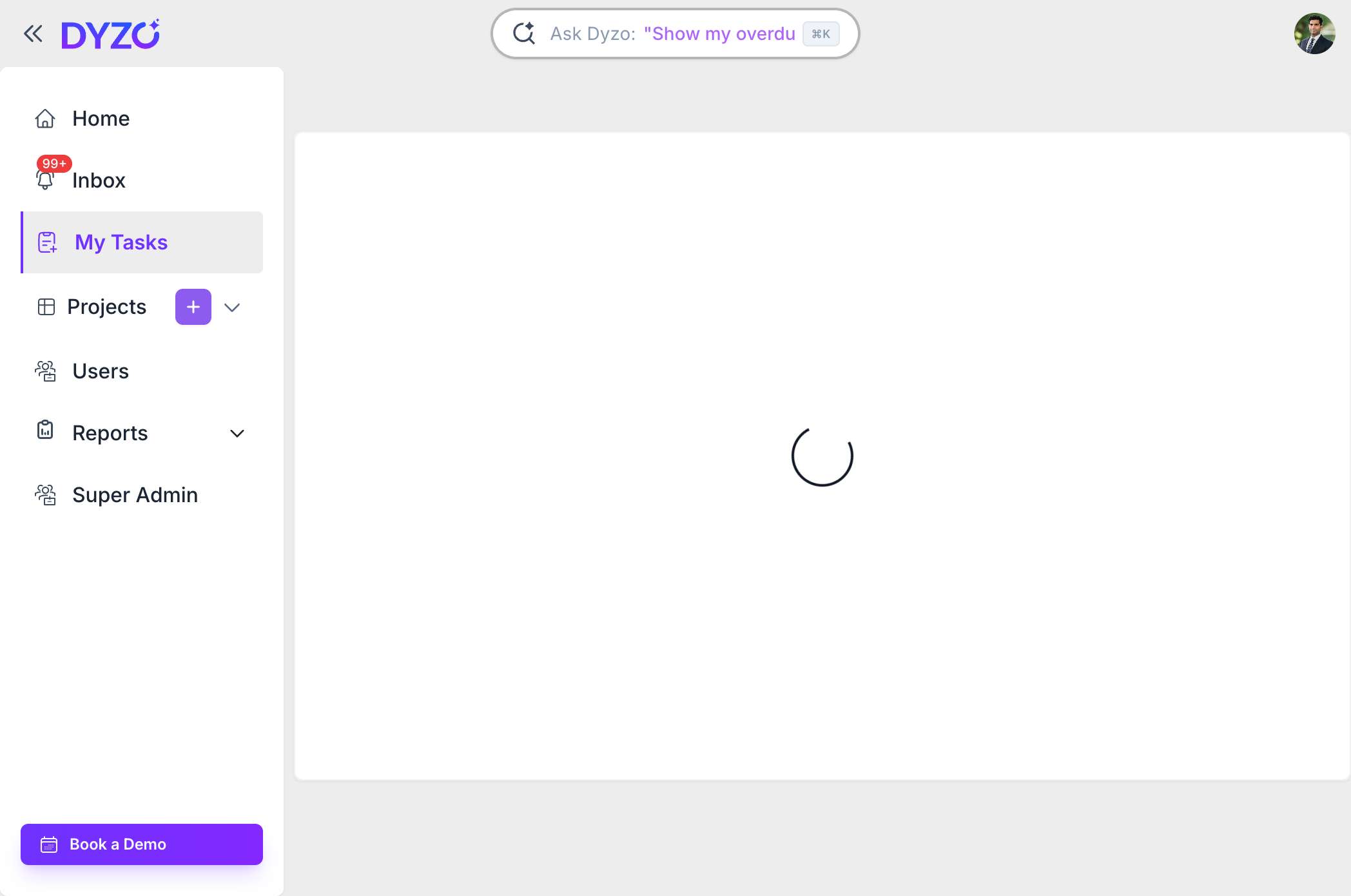
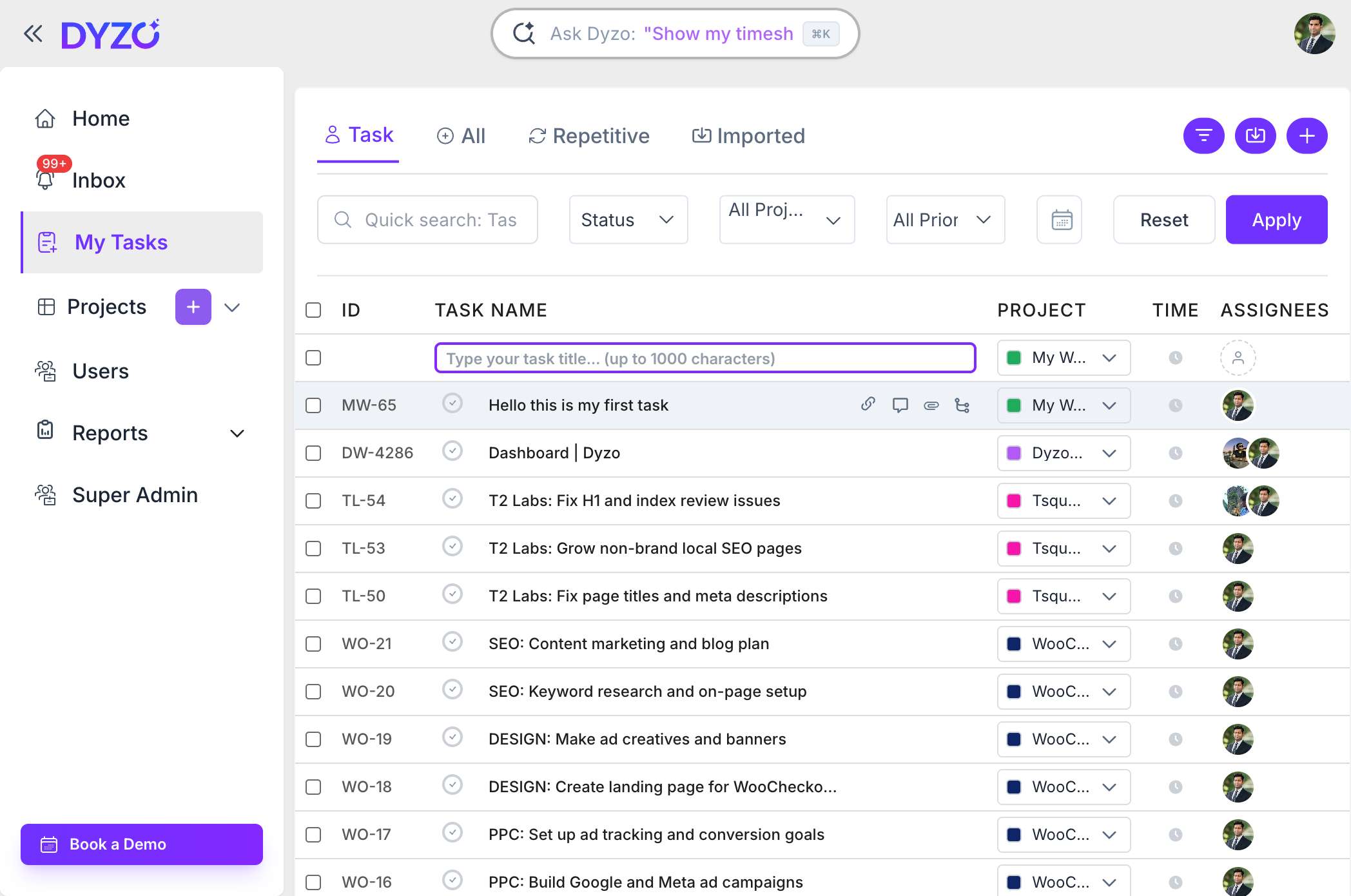
From the sidebar, click My Tasks. This is your personal workspace where every task assigned to you lives, so it's the natural place to start adding work.
Step 2: Click the plus (+) icon
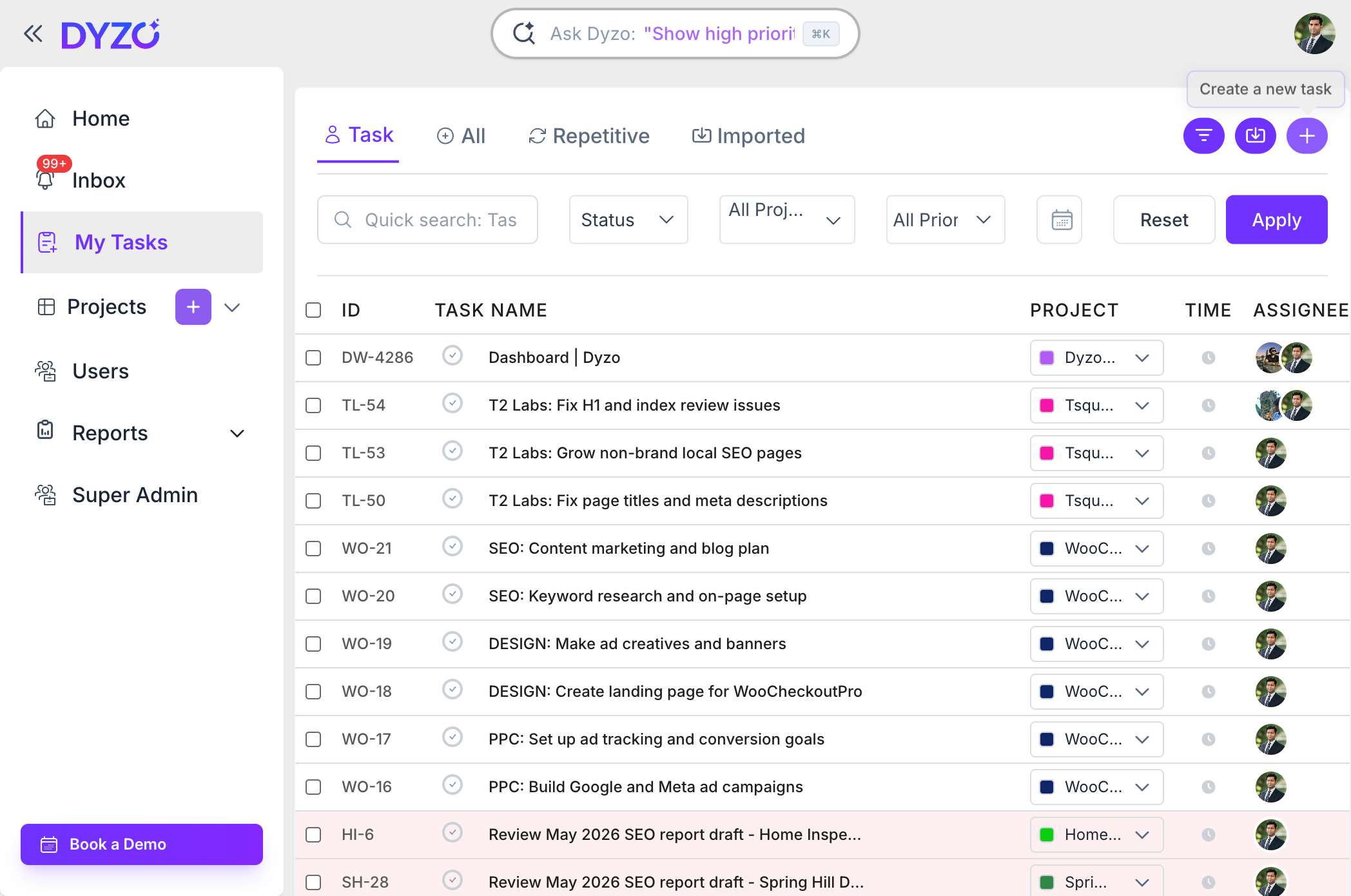
Click the plus icon to start a new task. A new task row appears, ready for you to type.
Step 3: Name your task
Type your task name — for example, "Hello this is my first task" — and press Enter. That's it: your task is created and saved instantly.
What to do next
Once your task exists, you can make it work harder for you:
- Assign it to a teammate so everyone knows who owns it (first, invite your team)
- Set a due date and priority to keep deadlines visible
- Track time against it with the Dyzo Desktop Timer
- Automate it — create tasks straight from Claude or OpenAI using the Dyzo MCP server, perfect for automating your agency
Creating tasks manually is great for one-offs. When you're ready to scale, Dyzo's API and AI integrations let you generate tasks in bulk from briefs, notes, or chats — so your task list builds itself.
Ready to try Dyzo for free?
Plan work, track time, and automate busywork — all in one place.
Start Free with Dyzo →No credit card required · Free forever plan · 2-minute setup
Frequently asked questions
How do I create a task in Dyzo?+
Open the My Tasks view from the sidebar, click the plus (+) icon, type your task name, and press Enter. Your task is created instantly and ready to assign, schedule, or track time against.
Can I assign a task to a team member in Dyzo?+
Yes. After creating a task, open it and choose an assignee from your workspace members. You can also set a due date, priority, and project. See our guide on inviting and managing team members to add people first.
Can I create tasks automatically with AI?+
Yes. With the Dyzo MCP server or REST API you can create tasks from Claude, OpenAI, or any LLM using natural language — ideal for turning client briefs or meeting notes into tasks automatically.
Is there a faster way to add many tasks at once?+
For bulk or automated task creation, use the Dyzo API or connect Dyzo to an AI assistant via MCP. Manual creation is best for one-off tasks; automation is best for recurring or high-volume workflows.
Part of these guides: