How to Enable Screenshot Permission for Dyzo Timer App on macOS (Complete Step-by-Step Guide)
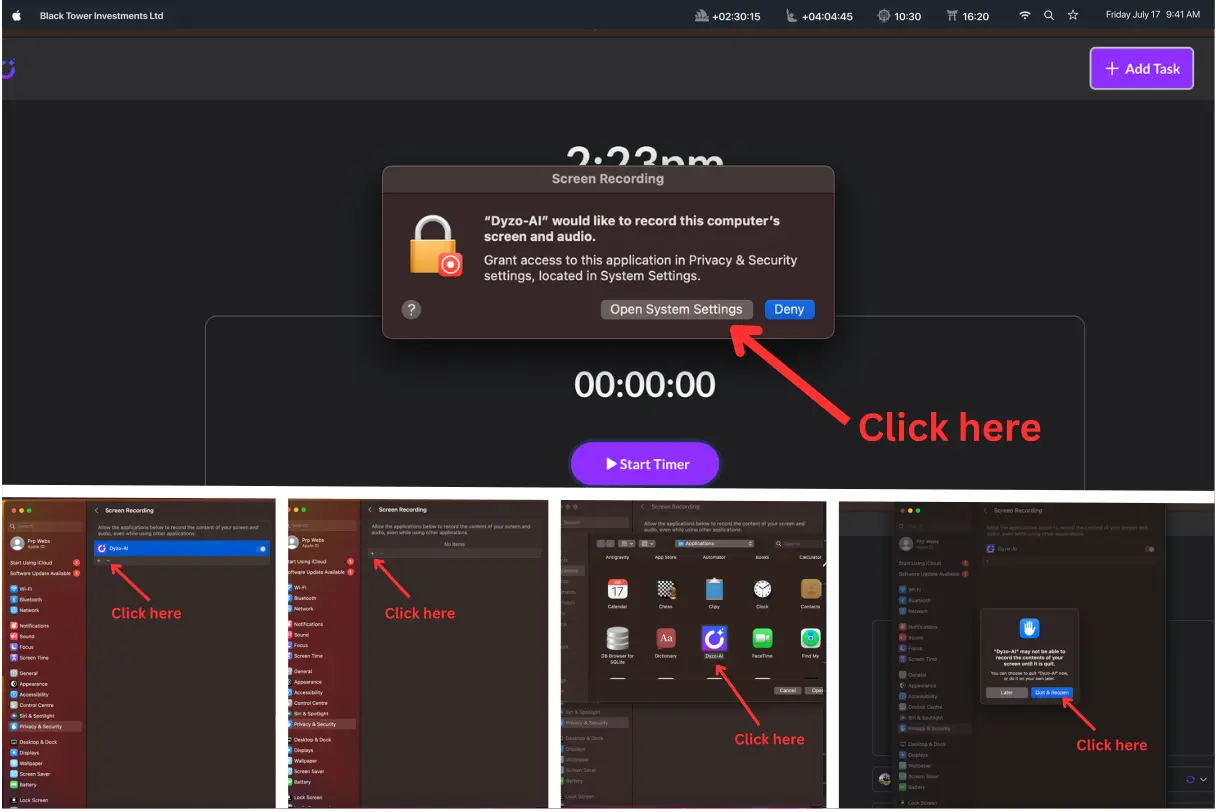
if you're using the Dyzo Timer App on macOS and screenshots are not being captured properly, it’s likely due to missing Screen Recording permission. macOS requires explicit user approval before any app can capture screenshots or record the screen. Below is a simple step-by-step guide to fix the issue.
Step 1: Install and Open the Dyzo Timer App
- Download and install the Dyzo Timer App on your Mac.
- Open the application.
Once the app opens, macOS will automatically prompt you to allow Screen Recording permission.
Step 2: Click “Open Settings” When Permission Prompt Appears
- Click “Open Settings” when the permission dialog appears.
- This will redirect you to: System Settings → Privacy & Security → Screen Recording.
There you will see a list of applications requesting screen access. 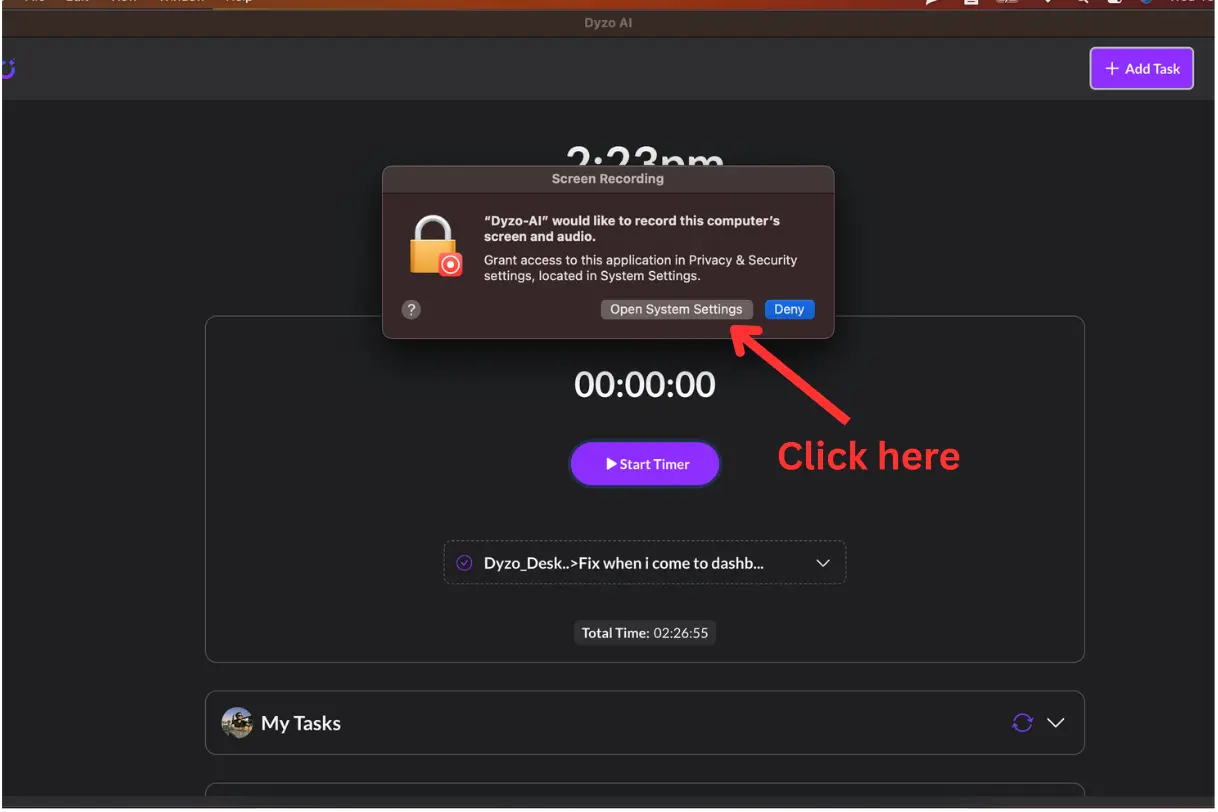
Step 3: Reset and Re-Grant Screen Recording Permission
- Go to: System Settings → Privacy & Security → Screen Recording.
- Locate Dyzo in the list.
- If permission already exists for Dyzo:
- Select Dyzo from the list. - Click the ( - ) icon to remove the existing permission. - Then click the ( + ) icon. - Re-add Dyzo and grant permission again. Alternatively, if a toggle is visible, you can turn it OFF and then turn it ON again to refresh the permission. This refreshes macOS security permissions and resolves most issues. 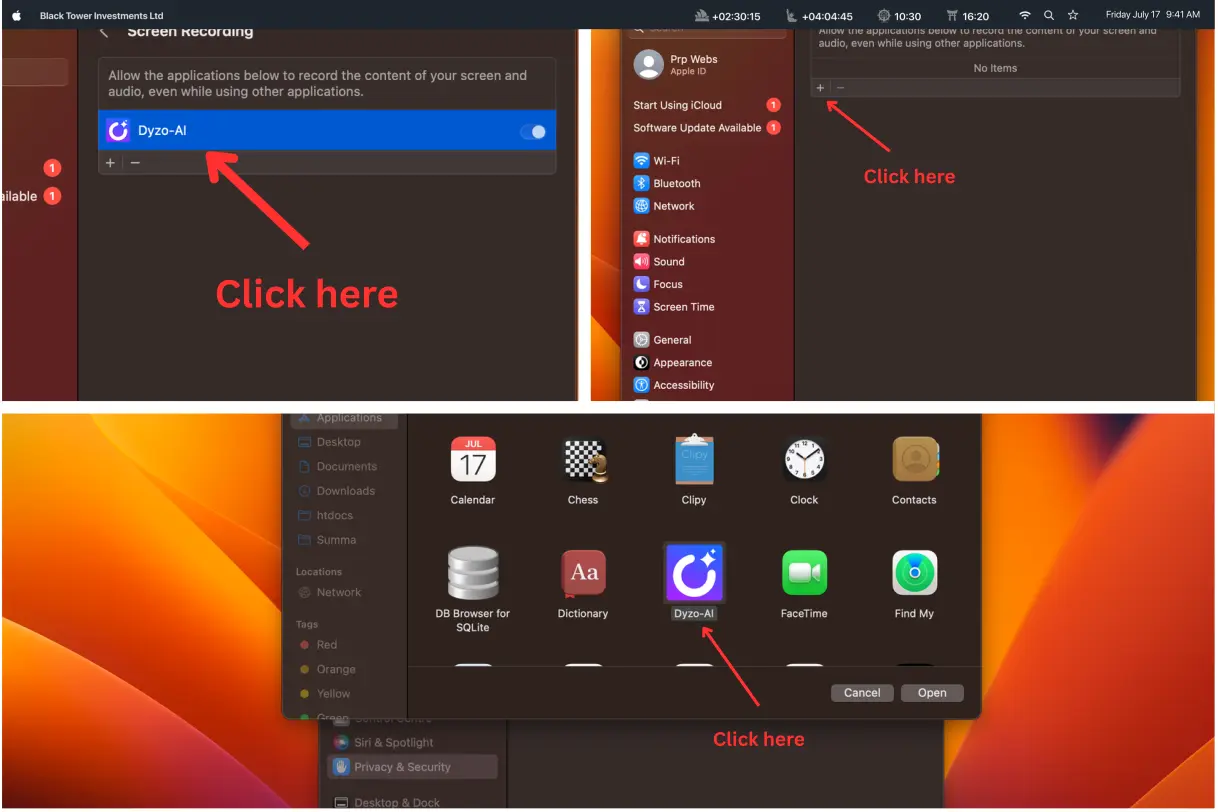
Step 4: Click “Quit & Reopen” and Restart the Timer
- macOS will ask you to restart the application.
- Click “Quit & Reopen”.
- Once Dyzo opens again, start the timer.
Your screenshots should now work properly. 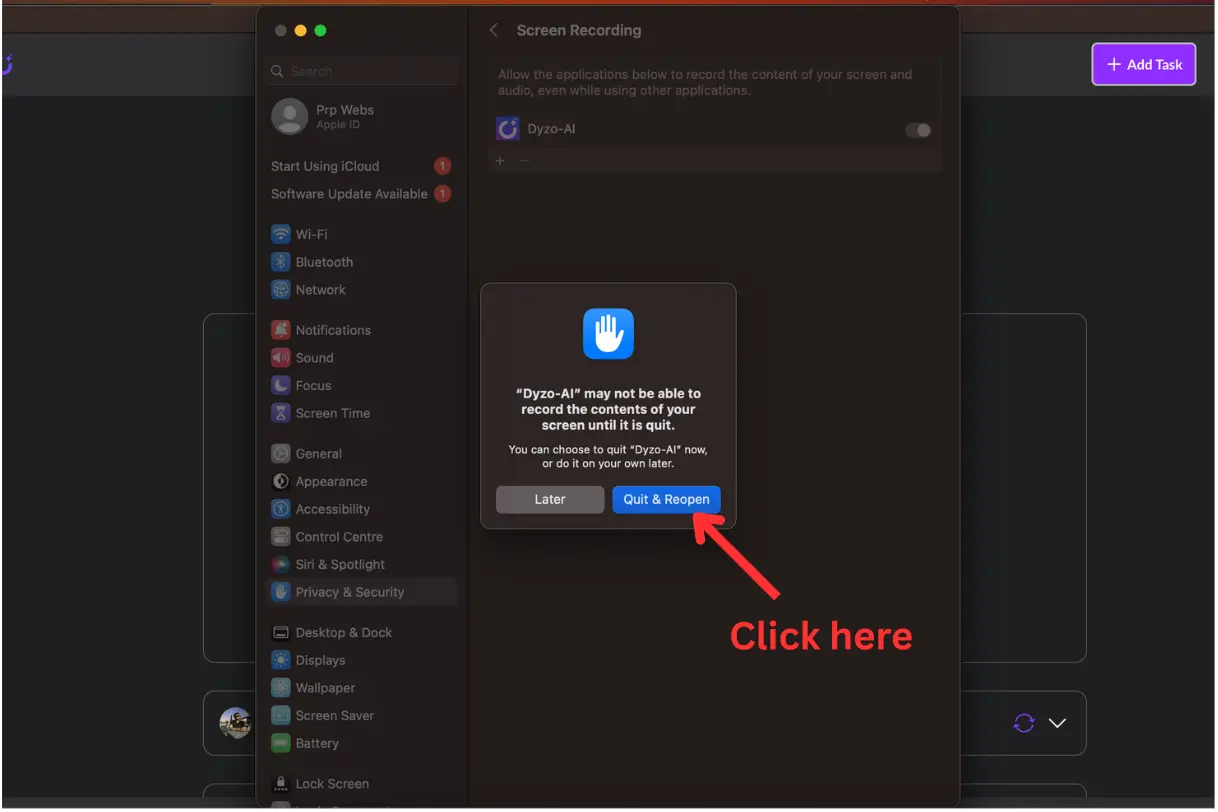
Why Screen Recording Permission Is Required
macOS protects user privacy by preventing apps from capturing screen content without explicit consent. Dyzo requires Screen Recording access strictly for productivity tracking, time monitoring, and secure screenshot capture. Your data remains protected under macOS security standards.
Troubleshooting (If It Still Doesn’t Work)
- Restart your Mac.
- Make sure macOS is updated.
- Remove Dyzo from Screen Recording permissions and re-add it.
- Uninstall and reinstall the Dyzo Timer App.
Ready to try Dyzo for free?
Plan work, track time, and automate busywork — all in one place.
Start Free with Dyzo →No credit card required · Free forever plan · 2-minute setup
Part of these guides: