The Chrome Extension That Lets You Create Tasks From Anywhere
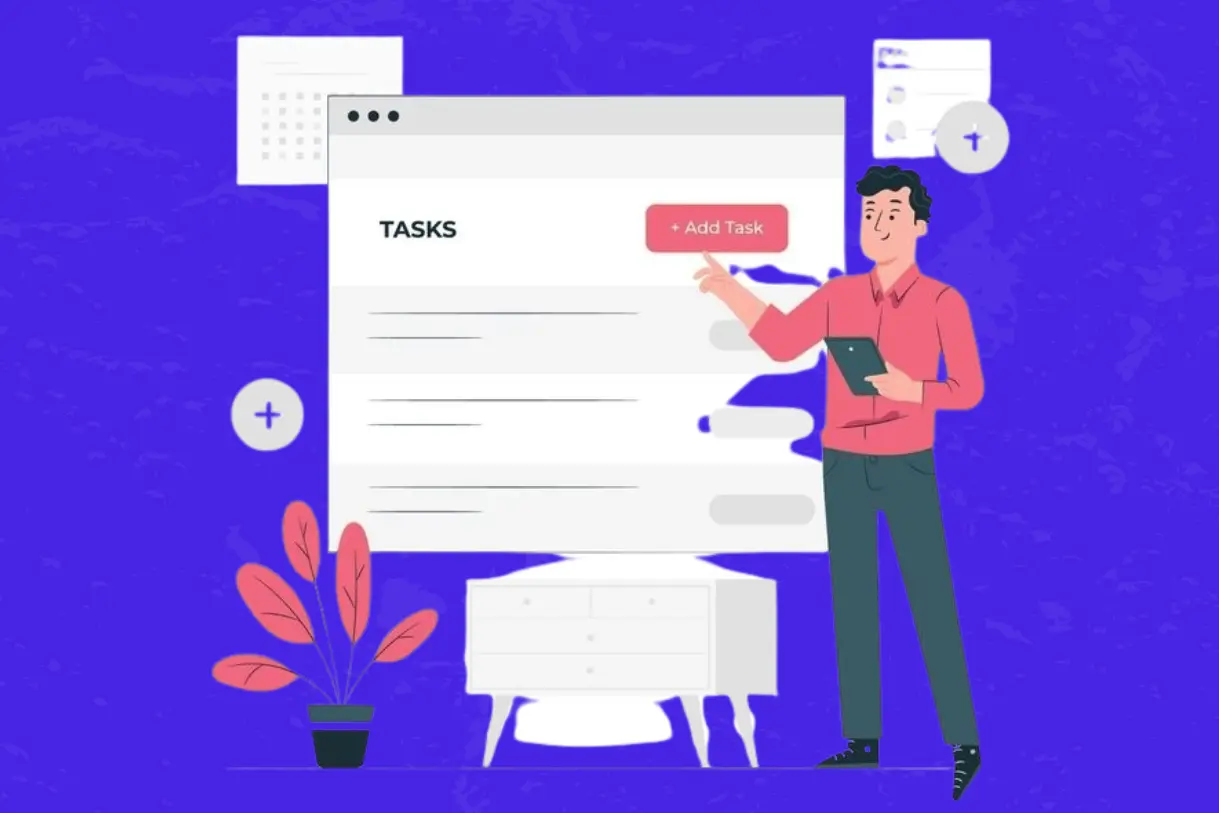
We’ve all been there: reading an email, browsing a client brief, or reviewing an online document when a new task pops into our head. The problem? Switching to a project management app interrupts our flow, breaks concentration, and adds unnecessary friction. 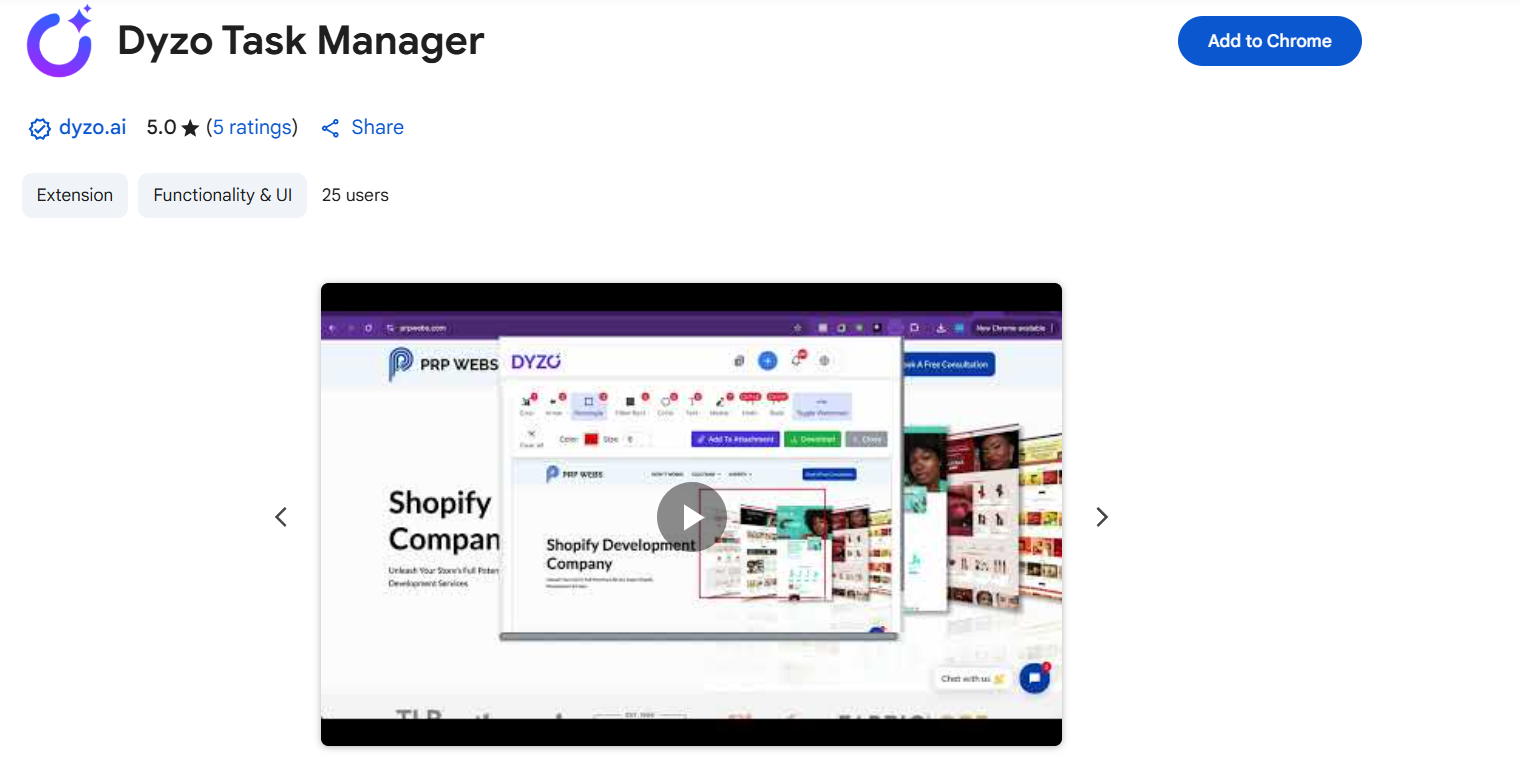 Dyzo solves this with its Chrome Extension, designed to make task creation effortless. Instead of losing momentum, you can capture tasks instantly without ever leaving your browser tab. In this article, we’ll explore why browser-based task creation is a game-changer, how Dyzo’s extension works, and how teams use it to stay productive without context switching.
Why Browser-Based Task Creation Matters
Traditional project management tools require you to leave what you’re doing, open the app, and manually log a new task. This creates problems:
- Context switching - interrupts focus and flow
- Lost ideas - tasks get forgotten before they’re logged
- Extra clicks - small friction that adds up across the day
For busy teams, these micro-disruptions compound into hours of lost productivity every week. With a browser extension like Dyzo’s, task management moves to where you already work: your browser.
- Reading an email in Gmail? Create a task in two clicks.
- Reviewing a spec in Google Docs? Capture it instantly.
- Browsing research online? Save action items without opening the full app.
This “capture anywhere” approach is especially powerful for remote and hybrid teams who rely heavily on browser-based workflows.
How the Dyzo Chrome Extension Works
Dyzo’s Chrome Extension is designed for simplicity + power.
1. One-Click Task Creation
Add tasks instantly from any tab.
- Why it matters: You never lose track of an idea, update, or action item.
2. Context-Rich Task Entries
Include notes, attachments, or project labels directly from the extension.
- Why it matters: Tasks stay organized without needing to open the full platform.
3. Seamless Sync with Dyzo Dashboard
Every task created in the extension is automatically synced with your Dyzo account.
- Why it matters: No duplicate work or manual transfer.
4. Stay in Flow
Because you don’t leave the page you’re on, your workflow remains uninterrupted.
- Why it matters: Saves micro-moments that add up to big productivity gains.
5. Lightweight & Secure
The extension is lightweight, fast, and secure. No bloated add-ons.
- Why it matters: Performance stays smooth, and teams trust their data.
The Benefits of Dyzo’s Chrome Extension
- Faster Task Capture
- No more waiting until “later” to log tasks.
- Ideas and actions are saved in real-time.
- Reduced Meeting Follow-Ups
- Instead of forgetting to “write it down,” tasks can be created instantly while reviewing client or project info.
- Improved Accountability
- Tasks aren’t missed, forgotten, or lost in random notes.
- Everything is centralized in Dyzo’s dashboard.
- Better for Remote Teams
- Distributed teams often collaborate asynchronously.
- The extension ensures tasks are logged in the moment, keeping everyone aligned.
Real-World Example: Task Creation in Action
Consider a marketing team running multiple client campaigns:
- A strategist sees a competitor ad online that sparks an idea. With Dyzo’s extension, they create a task immediately for the design team.
- A project manager reviewing client emails logs follow-up tasks without leaving Gmail.
- A copywriter working in Google Docs flags a revision task directly from their browser.
Without the extension, these tasks would likely end up in scattered notes or forgotten entirely. With Dyzo, they’re logged instantly, assigned to the right person, and visible in the dashboard. Result: fewer dropped balls, faster execution, and tighter collaboration.
How to Get Started with Dyzo’s Chrome Extension
It takes less than 2 minutes to start using Dyzo’s Chrome Extension:
- Install from Chrome Web Store – Search “Dyzo Task Manager” and click Add.
- Log in to your Dyzo account – Or sign up free if you’re new.
- Pin the extension – Keep it handy in your browser bar.
- Start capturing tasks instantly – From Gmail, Google Docs, or any website.
No training. No setup headaches. Just pure productivity at your fingertips. Ready to make task creation effortless? Install Dyzo’s Chrome Extension
FAQs
Q: Do I need the Dyzo app to use the extension? A: Yes, the extension syncs directly with your Dyzo account for seamless management. Q: Does it work offline? A: Tasks can be created offline and sync automatically when you reconnect.
Ready to try Dyzo for free?
Plan work, track time, and automate busywork — all in one place.
Start Free with Dyzo →No credit card required · Free forever plan · 2-minute setup
Part of these guides: