Step-by-Step Dyzo Setup Guide for Time Tracking Tool
Starting with a new platform can be overwhelming, especially when managing projects that require precise coordination but not with Dyzo.ai. Its super easy to set up and you can do it in three easy steps: 1.Sign up on Dyzo and invite your team mate. 2.Assign task to them, you can do that either manually or via AI Assistant or Chrome extension. 3. When your team mate starts the timer on the Dyzo timer app, you will be able to see the live report of actual time logged and what exactly your employee is doing. Dyzo.ai simplifies project management through intuitive design powered by AI, geared toward boosting team productivity right from the start. This walkthrough will guide new users step by step to optimize time tracking and enhance collaboration.
Getting Started: Setting Up Your Dyzo Account
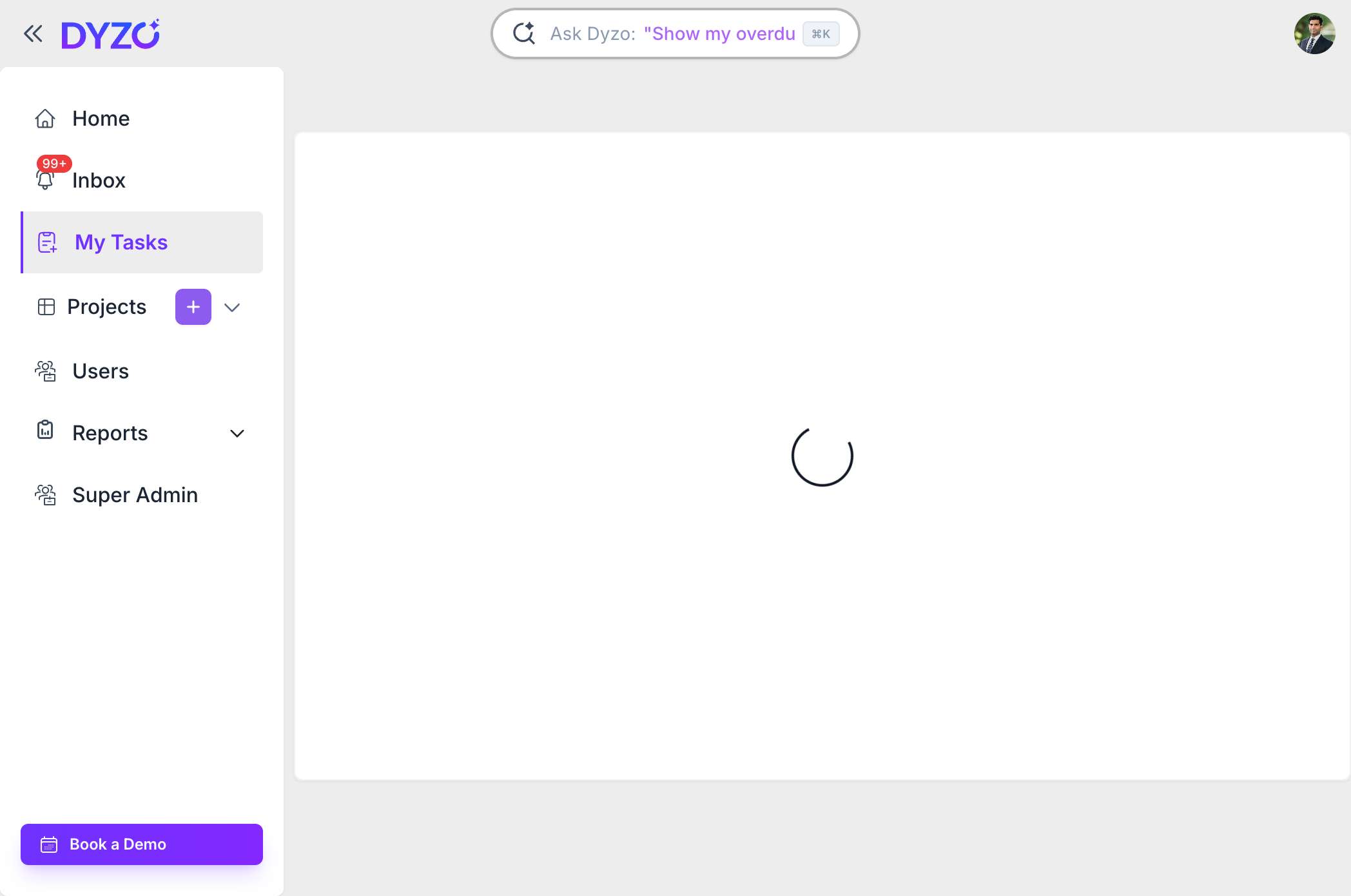
Create your Dyzo account at Dyzo to begin your journey toward improved team productivity. Setting up projects and inviting team members is simple and requires no technical skills, allowing you to jump straight into managing your tasks and tracking time efficiently.
Step 1: Create Tasks Instantly Using Dyzo’s AI Assistant
With Dyzo’s AI task assistant, you can create tasks effortlessly by typing plain instructions. The AI converts them into actionable tasks with deadlines and assignments, saving time and ensuring everyone knows what to focus on for maximum productivity.
Step 2: Organize Tasks and Boost Team Productivity
Visual task boards let you track the progress of tasks as they move from “To Do” to “Done,” making priorities and deadlines clear. Bulk edits allow fast adjustments for large projects, and permissions keep task ownership clear, all ensuring smoother workflows and better team productivity.
Step 3: Enhance Accountability with Automatic Time Tracking
Dyzo’s automatic time tracking runs discreetly in the background, logging hours accurately without interrupting work. Supplemented by optional screenshots, this transparency fosters trust within teams and ensures reliable data for project billing and management.
Step 4: Gain Real-Time Insights with Live Reports & Activity Snapshots
One of Dyzo’s standout features is Live Reports & Activity Snapshots, delivering real time visibility into team activities. Managers can monitor progress live, identify bottlenecks early, and maintain high team productivity by intervening before deadlines are missed.
Step 5: Stay Updated with Smart Notifications
Dyzo provides timely notifications for task updates, completions, or reassignments, keeping teams aligned without overwhelming them. This feature supports smooth communication and sustained productivity, even across distributed teams in different time zones.
Step 6: Centralize Team Communication for Better Productivity
Dyzo integrates discussions, files, and task updates in one place. This centralized approach eliminates scattered information, saving time and reducing misunderstandings, which directly contributes to higher team productivity.
Step 7: Standardize Workflows Using Templates and SOPs
Reuse successful workflows by saving Standard Operating Procedures (SOPs) and task templates. This standardization ensures consistent team productivity by minimizing errors and speeding up repetitive processes.
Step 8: Generate Comprehensive Reports for Review
Dyzo automatically compiles detailed reports combining time tracking data with task progress. These reports enable better client communication and insightful team reviews, supporting data-driven decisions to continue improving productivity.
Tips for New Users to Maximize Dyzo’s Time Tracking and Team Productivity
- Use AI task creation to reduce manual input and free up team effort for productive work.
- Regularly consult [Live Reports & Activity Snapshots] to monitor real-time task status.
- Utilize bulk task management to streamline project updates.
- Customize notification settings to receive important alerts without distraction.
- Integrate Dyzo with existing tools to maintain seamless time tracking and collaboration.
Conclusion: Drive Your Team’s Productivity with Dyzo
Dyzo.ai is designed to help teams work smarter with integrated AI task management and automatic time tracking. New users can quickly ramp up their workflow, enhance team productivity, and enjoy transparent project oversight using [Live Reports & Activity Snapshots]. Don’t let complexity slow your team down—start with Dyzo today and see how effortless productivity can be.
Ready to try Dyzo for free?
Plan work, track time, and automate busywork — all in one place.
Start Free with Dyzo →No credit card required · Free forever plan · 2-minute setup
Part of these guides: