How to Automate Your Agency With Dyzo AI and Claude [2026 Guide]
Why Agencies Are Turning to AI Automation in 2026
Running an agency means managing projects, clients, deadlines, and team accountability — all at once. Most agencies lose 10–15 hours per week to manual task creation, status updates, and report generation. The good news: combining Dyzo AI with Claude (Anthropic's AI assistant) eliminates almost all of that friction.
In this guide, you'll learn exactly how to connect Dyzo with Claude, set up the Dyzo MCP integration, and build automation workflows that let your team focus on client work instead of admin.
What You'll Need
- A Dyzo.ai account (free tier available)
- Claude.ai account or Anthropic API access
- Claude Code CLI (for MCP integration) or Claude Desktop App
- 5 minutes to configure
Step 1: Set Up Your Dyzo MCP API Key
Dyzo's Model Context Protocol (MCP) lets Claude connect directly to your workspace and manage tasks, projects, and reports using natural language. Here's how to get your API key:
- Log in to your Dyzo.ai account
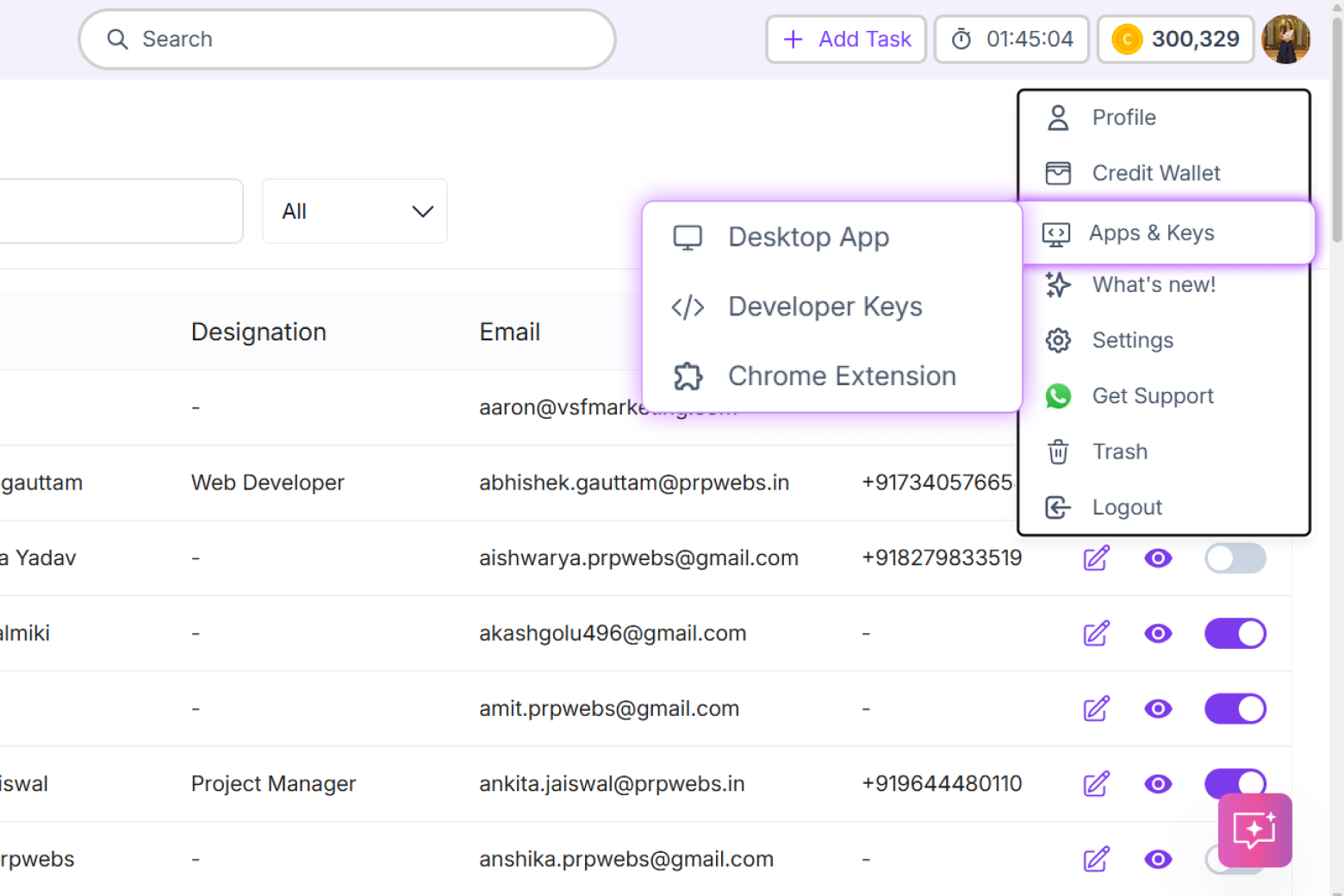
- Click your Profile menu (top right corner)
- Go to Apps & Keys → Developer Keys
- Click + Create Key and copy your MCP API key
For the full walkthrough with screenshots, see our Dyzo MCP Documentation guide.
Step 2: Connect Dyzo MCP to Claude
You can connect Dyzo to Claude in two ways depending on your setup:
Option A: npm package (Easiest)
Dyzo publishes an official MCP server on npm — dyzo-ai-mcp — so Claude can run it with a single npx command (nothing to install). Add this to your claude_desktop_config.json (or Claude Code / Cursor config):
{
  "mcpServers": {
    "dyzo": {
      "command": "npx",
      "args": ["-y", "dyzo-ai-mcp@latest", "--key", "YOUR_API_KEY_HERE"]
    }
  }
}
Option B: Remote SSE endpoint
Prefer connecting to the hosted server directly? Use the SSE endpoint instead:
{
  "mcpServers": {
    "dyzo": {
      "type": "sse",
      "url": "https://mcp.dyzo.ai/connect",
      "headers": {
        "x-mcp-key": "YOUR_DYZO_MCP_KEY"
      }
    }
  }
}
Replace YOUR_API_KEY_HERE / YOUR_DYZO_MCP_KEY with the key you generated in Step 1. Save the file and restart Claude. Full options are in the Dyzo MCP Documentation.
Step 3: 5 Agency Automation Workflows with Dyzo + Claude
Once connected, you can use plain English to run your entire agency workflow. Here are the five most valuable automations:
1. Create Tasks From Client Briefs
Instead of manually breaking down a client brief into Dyzo tasks, paste the brief into Claude and say:
"Create tasks in the Website Redesign project for everything in this brief. Assign them to the Design team with a 2-week deadline."
Claude reads the brief, creates all tasks in Dyzo, sets deadlines, and assigns team members — in seconds.
2. Morning Agency Standup Report
Ask Claude every morning:
"Generate a standup report from Dyzo showing what each team member worked on yesterday and what's due today."
Claude pulls live data from Dyzo and formats it into a clean report you can share with your team or post in Slack.
3. Automatic Client Status Updates
Every Friday, ask Claude:
"Create a client-facing progress report for the Johnson Digital project in Dyzo, covering this week's completed tasks and next week's priorities."
Claude generates a professional update using real task data — no manual report writing needed.
4. Overdue Task Alerts
"Check Dyzo for any tasks overdue by more than 2 days and create a priority follow-up list for me."
Claude scans your entire Dyzo workspace and flags at-risk deliverables before clients notice.
5. New Client Onboarding
"Create a new project in Dyzo called 'Acme Corp Launch', add these 8 standard onboarding tasks, and assign them to Sarah with due dates starting next Monday."
What used to take 20 minutes of manual setup now takes 30 seconds.
Real Results: What Agencies Are Saving
| Task | Before (Manual) | After (Dyzo + Claude) |
|---|---|---|
| Task creation from brief | 45 mins | 2 mins |
| Weekly status report | 2 hours | 5 mins |
| Client onboarding setup | 20 mins | 30 secs |
| Daily standup prep | 30 mins | 1 min |
Using the Dyzo API for Custom Claude Integrations
For agencies that want deeper custom automation, Dyzo also offers a full REST API. You can build Claude-powered workflows that pull data from Dyzo, process it with Claude's reasoning, and push results back — all programmatically.
To get started with the API, see: Dyzo API Keys: Access Project Management & Task Automation Programmatically
Time Tracking + Claude: A Powerful Combo
Dyzo's built-in time tracking integrates with this workflow too. Ask Claude:
"Show me a time tracking report from Dyzo for last week, broken down by client and project."
Claude pulls your Dyzo Desktop Timer data and gives you instant visibility into where your agency's hours are going — perfect for billing and profitability reviews.
Ready to try Dyzo for free?
Plan work, track time, and automate busywork — all in one place.
Start Free with Dyzo →No credit card required · Free forever plan · 2-minute setup
Frequently asked questions
Do I need a paid Dyzo plan to use the MCP integration?+
No. The Dyzo MCP is available on all plans including the free tier. You just need to generate an API key from your Developer Keys section. There are no usage limits on MCP connections for free accounts.
Which version of Claude works with Dyzo MCP?+
Dyzo MCP works with any Claude version that supports MCP — including Claude Sonnet 4, Claude Opus 4, and Claude Haiku 4. It also works with Claude Desktop, Claude Code CLI, and any custom integration using the Anthropic API with tool use enabled.
Is my Dyzo data secure when accessed through Claude?+
Yes. Dyzo MCP uses a secure API key that you can revoke at any time from your Developer Keys dashboard. Only the specific Dyzo workspace linked to your API key is accessible — Claude cannot access other users' data or system settings.
Can Claude create and assign tasks to specific team members in Dyzo?+
Yes. Once the Dyzo MCP is connected, Claude can create tasks, update statuses, assign to team members, set deadlines, add comments, and generate reports — all using natural language commands.
What other AI tools work with Dyzo?+
Dyzo's MCP and REST API work with any AI tool that supports tool-calling or API integrations, including Claude, OpenAI GPT-4o, Cursor, Windsurf, and custom LLM workflows. See our guide on integrating Dyzo with OpenAI for another powerful workflow.
Part of these guides: