How to Integrate Dyzo AI with OpenAI to Automate Agency Task Management
Dyzo AI + OpenAI: The Agency Automation Stack You've Been Missing
OpenAI's GPT models are powerful reasoners. Dyzo AI is your team's project management and time tracking backbone. Connect the two and you get an automation engine that handles the work most agencies dread — task creation, status reporting, client updates, and workflow management — automatically.
This guide shows you exactly how to integrate Dyzo AI with OpenAI GPT-4o using the Dyzo REST API, with practical examples your agency can use from day one.
Two Ways to Connect Dyzo with OpenAI
Depending on how you work, there are two integration paths:
- Dyzo REST API + OpenAI API — Build custom automation scripts that use OpenAI to process content and Dyzo to manage the output
- OpenAI Custom GPT with Dyzo actions — Create a Custom GPT in ChatGPT that connects to your Dyzo workspace via the API
We'll cover both. Start with whichever matches your technical comfort level.
Method 1: Dyzo REST API + OpenAI API (Python)
What You'll Need
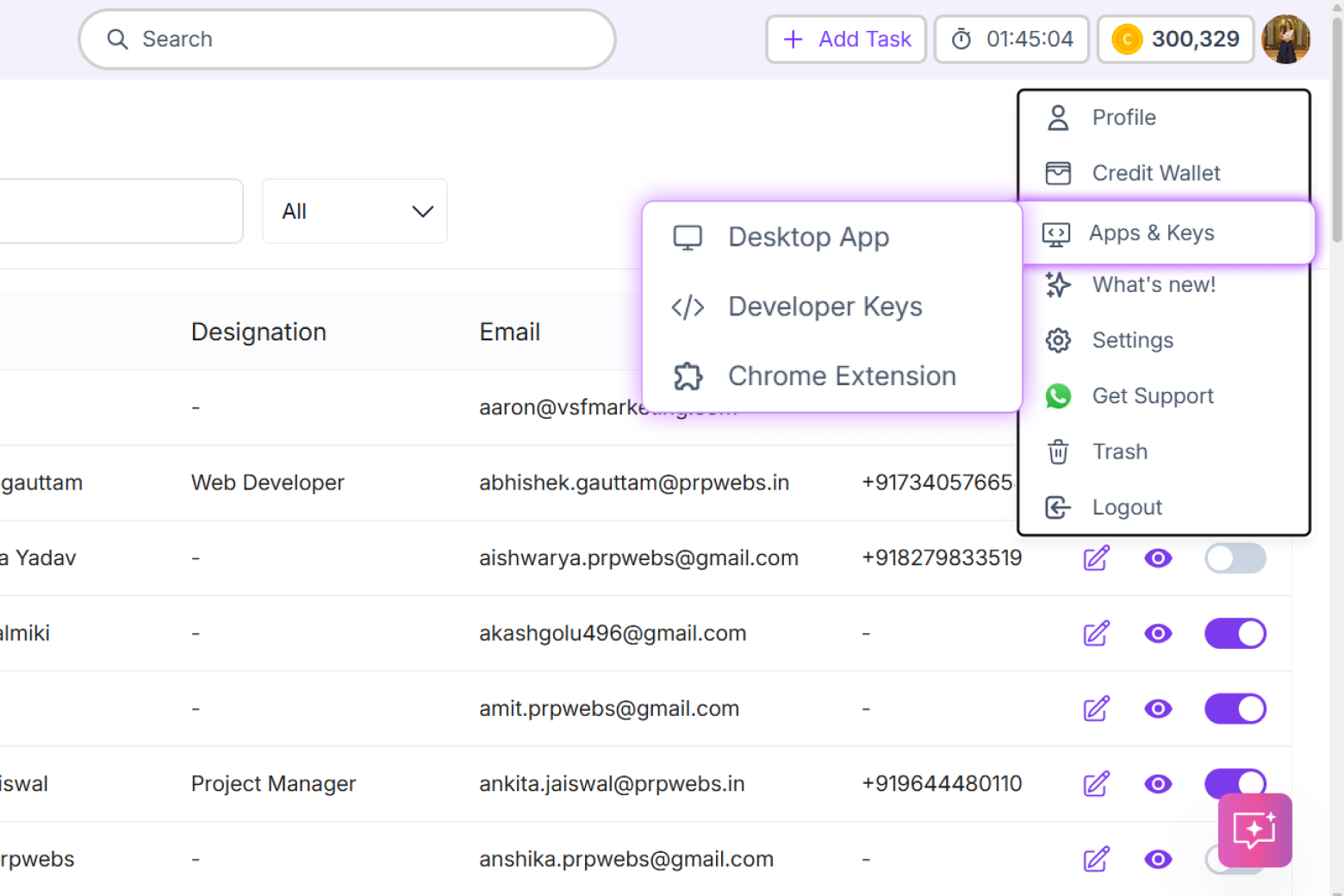
- Dyzo API key — from Dyzo.ai → Profile → Apps & Keys → Developer Keys (see our full API keys guide)
- OpenAI API key from platform.openai.com
- Python 3.9+ with
openaiandrequestslibraries
Sample: Auto-Create Tasks From a Client Email
This script reads a client email, uses GPT-4o to extract action items, and creates them as tasks in Dyzo automatically:
import openai
import requests

DYZO_API_KEY = "your_dyzo_api_key"
OPENAI_API_KEY = "your_openai_api_key"
DYZO_PROJECT_ID = "your_project_id"

client = openai.OpenAI(api_key=OPENAI_API_KEY)

def extract_tasks_from_email(email_text):
    response = client.chat.completions.create(
        model="gpt-4o",
        messages=[
            {"role": "system", "content": "Extract a list of specific action items from this client email. Return as JSON array with fields: title, description, priority (low/medium/high)."},
            {"role": "user", "content": email_text}
        ],
        response_format={"type": "json_object"}
    )
    return response.choices[0].message.content

def create_dyzo_task(title, description, priority="medium"):
    headers = {
        "Authorization": f"Bearer {DYZO_API_KEY}",
        "Content-Type": "application/json"
    }
    payload = {
        "title": title,
        "description": description,
        "priority": priority,
        "project_id": DYZO_PROJECT_ID
    }
    response = requests.post(
        "https://api.dyzo.ai/v1/tasks",
        headers=headers,
        json=payload
    )
    return response.json()

# Example usage
email = """
Hi team, please update the homepage hero section with new copy,
fix the mobile nav bug, and send me a revised proposal by Friday.
Also need the Q2 report shared with the client by EOD.
"""

import json
tasks_json = json.loads(extract_tasks_from_email(email))
for task in tasks_json.get("tasks", []):
    result = create_dyzo_task(task["title"], task["description"], task["priority"])
    print(f"Created: {result.get('title', 'Unknown')}")
Run this once and four tasks appear in your Dyzo project instantly — no copy-pasting, no manual entry.
Method 2: Custom GPT With Dyzo API Actions
If you prefer no-code, you can build a Custom GPT in ChatGPT that connects to Dyzo via its REST API. This gives your whole team a chatbot interface for their Dyzo workspace.
Setting Up the Custom GPT
- Go to ChatGPT → Explore GPTs → Create
- In the Configure tab, click Add actions
- Enter the Dyzo API base URL:
https://api.dyzo.ai/v1 - Add your Dyzo API key as a Bearer token in Authentication
- Import the OpenAPI schema from your Dyzo API documentation
- Set the system prompt (see example below)
System Prompt for Your Dyzo GPT
You are a project management assistant for our agency.
You have access to our Dyzo workspace via the API.
When asked about tasks, projects, or reports, always fetch
live data from Dyzo before responding. You can create tasks,
update statuses, assign team members, and generate reports.
Always confirm before making any destructive changes.
Format reports in clean markdown tables.
Once set up, anyone on your team can open the Custom GPT and say things like:
- "What are the overdue tasks in the Acme Corp project?"
- "Mark task #142 as completed and add a note that the client approved."
- "Generate a weekly billing report for all client projects."
- "What did the dev team work on this week?"
5 Automation Workflows That Save Agencies Hours Every Week
1. Automated Project Kickoff Checklist
When you sign a new client, have OpenAI generate a full project task list from your onboarding template and push it directly to Dyzo. No more copying tasks from a spreadsheet.
2. AI-Generated Weekly Client Reports
Every Friday, a script pulls completed tasks from Dyzo, sends them to GPT-4o with a report template, and outputs a polished client-facing summary. What used to take 90 minutes now takes 30 seconds.
3. Smart Task Prioritization
Send your full task list to GPT-4o with current deadlines and team capacity, and let it re-prioritize your backlog. The results go back into Dyzo with updated priorities.
4. Meeting Notes → Tasks
Paste meeting notes or a call transcript into your Dyzo GPT. It extracts action items, assigns them to the right team members, and sets deadlines — automatically.
5. Overdue Escalation Alerts
A daily script checks Dyzo for overdue tasks, uses GPT-4o to draft a polite follow-up message per assignee, and sends a summary to the project manager. Your team stays accountable without awkward check-in emails.
Combining With Dyzo's Time Tracking
Dyzo's time tracking gives GPT-4o something incredibly useful: actual hours data. Feed your Dyzo Desktop Timer exports into OpenAI and ask it to:
- Identify which projects are over budget
- Calculate profitability per client
- Spot patterns in time waste across the team
- Generate invoicing summaries based on tracked hours
This turns your time tracking data from a compliance exercise into a strategic tool.
Connecting to the Dyzo MCP (For Developers)
If you're building on OpenAI's Agents SDK or building tool-calling workflows, Dyzo's MCP server is the most direct integration path. The Dyzo MCP exposes all core Dyzo functions as tools that any LLM with tool-calling support can invoke — including GPT-4o.
Dyzo publishes the MCP server on npm as dyzo-ai-mcp, so you can spin it up with a single command:
npx dyzo-ai-mcp --key YOUR_API_KEY
Point your MCP-compatible client (or the OpenAI Agents SDK's MCP support) at it and GPT can create tasks, manage projects, and pull reports directly. See the full setup instructions in our Dyzo MCP Documentation.
Ready to try Dyzo for free?
Plan work, track time, and automate busywork — all in one place.
Start Free with Dyzo →No credit card required · Free forever plan · 2-minute setup
Frequently asked questions
Does Dyzo have a native OpenAI integration?+
Dyzo provides a REST API and MCP server that work with any AI tool including OpenAI GPT models. There is no single-click connector yet, but the API-based integration described in this guide takes under 30 minutes to set up and gives you full control over your workflow.
What Dyzo plan do I need for API access?+
API keys are available on all Dyzo plans. You can generate your first API key from the Developer Keys section under Apps & Keys in your profile. For high-volume automation, a paid plan gives you higher rate limits.
Can I use GPT-4o mini instead of GPT-4o to save costs?+
Yes. For simple task extraction and report formatting, GPT-4o mini works well and costs significantly less. Use GPT-4o for complex reasoning tasks like project prioritization or when working with large volumes of unstructured data. You can switch models by changing one line in the code.
Is it safe to connect OpenAI to my Dyzo workspace?+
Yes, with proper setup. Use a dedicated Dyzo API key for your OpenAI integration with only the permissions needed. You can revoke this key at any time from your Dyzo Developer Keys dashboard. Never send sensitive client data (passwords, payment info) through the integration — use it only for task and project metadata.
What's the difference between using Claude vs OpenAI with Dyzo?+
Both work well. Claude integrates via Dyzo's MCP server for the smoothest experience, especially with Claude Code or the Claude Desktop app. OpenAI GPT-4o integrates via the Dyzo REST API or as a Custom GPT action. Many agencies use both — Claude for MCP-driven workflows and OpenAI for custom scripts and ChatGPT integrations. See our guide on automating your agency with Dyzo and Claude for the Claude-specific setup.
Part of these guides: